
How to Add a Wishlist Item
- Open the customer's Upsheet.
- Click Add Vehicle.

- Select Filters.
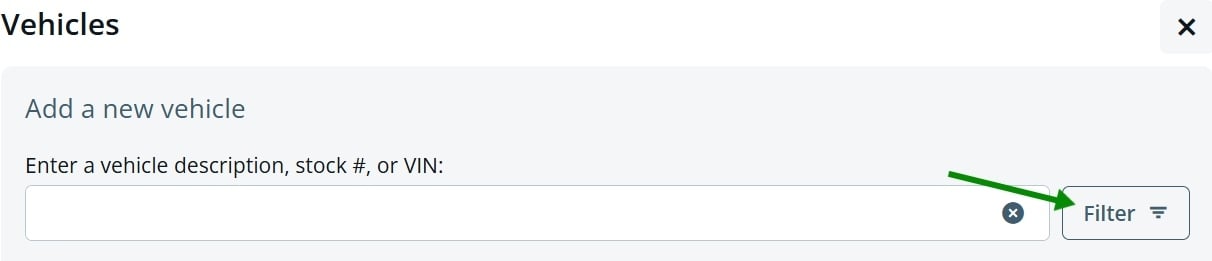
- Use the available filters to describe the vehicle the customer wants. For example, you can filter by:
- Make or model
- Body style
- Price range
- Mileage
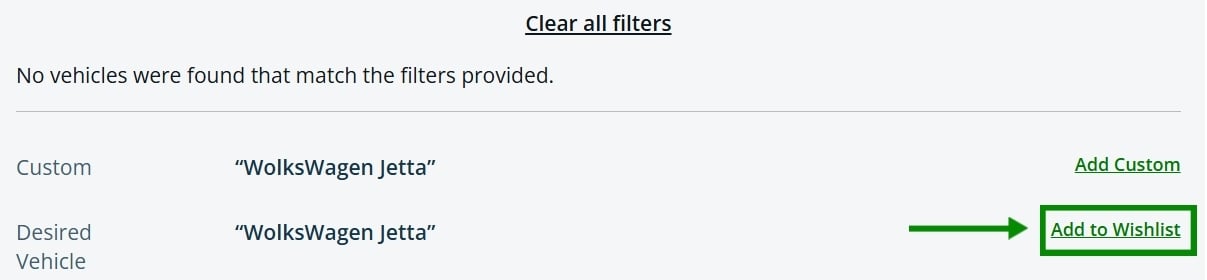
- Or simply type a description, such as "Volkswagen Jetta."
- Once you're happy with your selection, click Add to Wishlist.
The wishlist item will now appear on the customer's upsheet.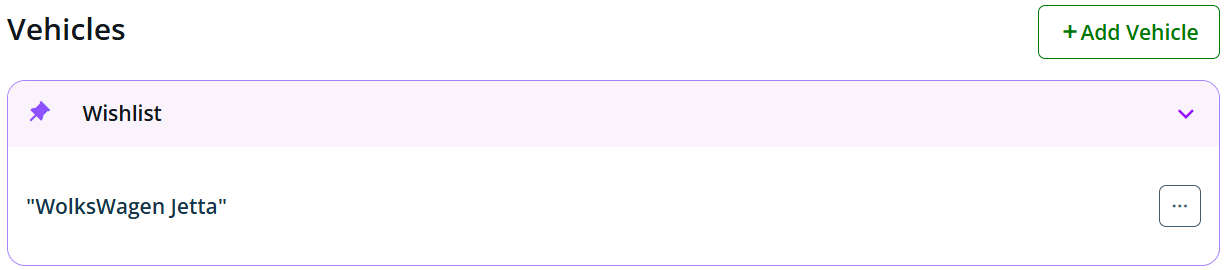
Tips
- You can make a wishlist item as broad or as specific as you'd like.
- Use only a few filters to keep the search broad, or add more filters to narrow down the customer's ideal vehicle.
- If you already know exactly what the customer wants, you can simply type a description instead of using filters.
Why Use Wishlist Items?
Wishlist items help you keep track of the type of vehicle a customer is looking for, even if there isn't an exact match in your inventory yet. This makes it easier to follow up when a suitable vehicle becomes available.
Interactive Walkthrough
Learn how to add a wishlist item with this interactive guide:
https://autoraptor.storylane.io/share/qfpf0tzmow7x