
Overview:
Use notes to record customer interactions, track activity, and keep your team aligned in one central place. You can also use @mentions to collaborate with team members in real time.
How to Add a Note
- Open the relevant Up Sheet
- Click “Add a Note” above the Buyer’s Details section

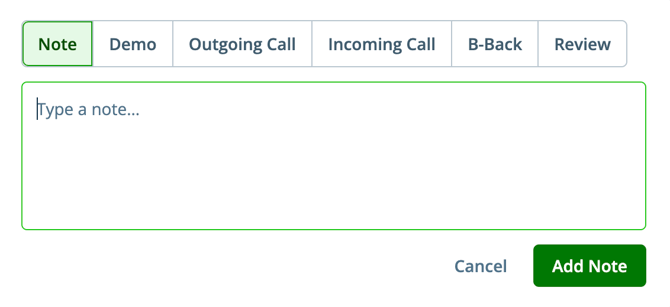
- Type your note in the text box
- Select the appropriate label (see below)
- Save the note
Note Labels
Always select a label when adding a note to help categorise the interaction:
- Note – General information about the customer or dealer
- Demo – A vehicle has been shown to the customer
- Incoming / Outgoing – Notes from a phone call
- B-Back – Customer has returned for another visit
- Review – Typically used for manager attention or follow-up review
In-App Messaging with @Mentions
You can use @mentions inside Up Sheet notes to instantly notify team members and improve collaboration.
How it works:
- Click Add a Note in the Up Sheet
- Type @ followed by a team member’s name
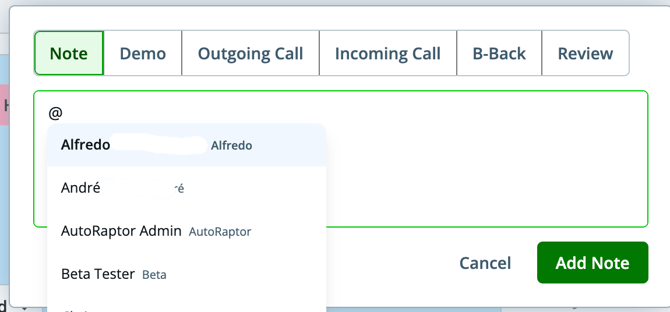
- Select the correct user from the list and complete your note
Notifications triggered:
- In-app notification (globe icon)
- Email notification
- The note is logged in the Up Sheet activity feed
Why This Matters
Using notes and @mentions helps your team:
- Stay updated on customer activity in real time
- Improve response times and internal communication
- Ensure important details are never missed
- Keep all collaboration documented in one place
Activity Tracking
All notes and mentions are automatically logged in the Up Sheet activity section. Entries are displayed from newest to oldest. To view the full history, click “View All”.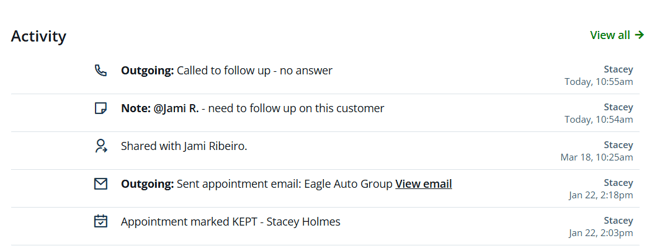
Pin Important Notes
You can now pin notes directly within an Up Sheet, making it easier to keep the most important information visible and accessible throughout the customer journey.
Pinned notes appear at the top of the activity feed, ensuring key details are always easy to find without scrolling through the full history. This helps teams stay aligned and focused on what matters most during the deal process.
How it works:
- Open the relevant Up Sheet
- Locate the note you want to pin within the activity feed
- Click the three dots (•••) on the note to open the options menu
- Select the pin icon to pin the note
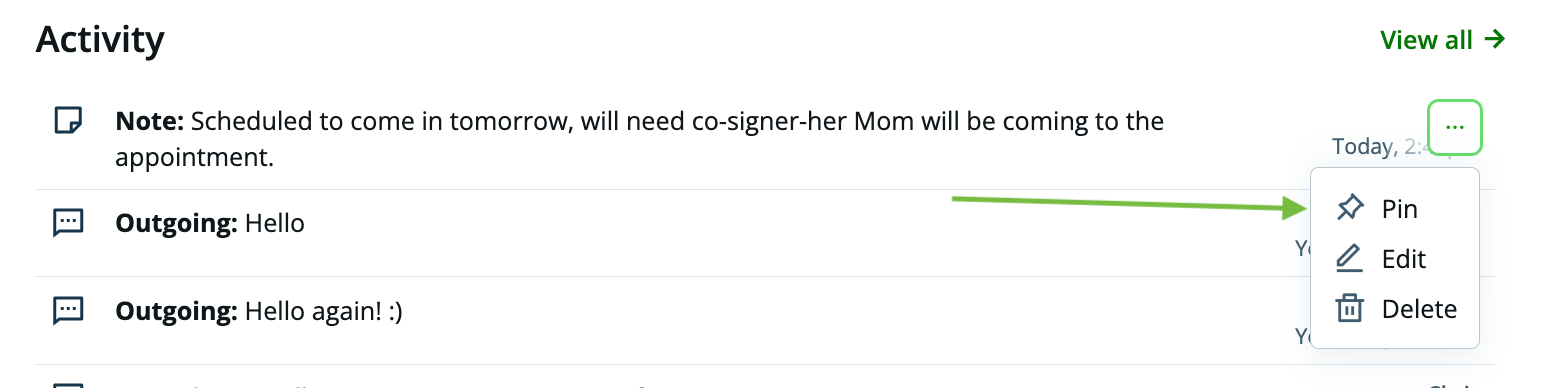
- The note will automatically move to the pinned section at the top of the activity timeline

You can pin up to 5 notes per Up Sheet, allowing you to highlight the most important and relevant information at each stage of the customer journey.
Why this is helpful:
Stay organized
Keep critical details—such as deal context, customer preferences, pricing discussions, or agreed next steps—visible and easy to reference at all times. This reduces the risk of important information being overlooked.
Improve team alignment
Pinned notes ensure everyone working on the Up Sheet has immediate access to the same key updates, helping maintain consistency across communication and follow-ups.
Prioritise key information
With a limit of 5 pinned notes per Up Sheet, teams can focus attention on the most impactful and time-sensitive details while still keeping a full record of all activity in the timeline.
Pinned notes are especially useful for active deals, handovers between team members, and situations where critical context needs to remain visible throughout the sales process.