
Overview
AutoRaptor now includes a CARS Compliance setting to help California dealers meet the requirements of the California CARS Act (SB 766).
The CARS Act took effect October 1, 2026 and requires dealers to include the vehicle's total price in their first written response to a customer about that vehicle.
AutoRaptor's CARS Compliance feature automatically includes the vehicle's price in the first message sent to a new lead, helping provide customers with clear pricing information before they arrive at the dealership.
How CARS Compliance Works
1. Enable CARS Compliance for your dealership
The CARS Compliance checkbox is located in Dealership Settings, directly below the dealership address.
CARS Compliance is off by default. You must enable it before it will affect your lead responses.
2. The first message includes the vehicle's price
When CARS Compliance is enabled for a lead source, the first message sent to every new lead from that source uses the CARS Compliance template.
The template automatically includes the vehicle's price from your AutoRaptor inventory feed.
3. Customize the compliance template
You can edit the CARS Compliance message to fit your dealership's communication style.
For example, you may want to update the message if the price coming from your inventory feed does not reflect the accurate total price you want to communicate to customers.
Important: The vehicle's total price should remain in the message. AutoRaptor does not prevent you from removing the price, but doing so may mean the first message is no longer compliant with the CARS Act.
4. Enable CARS Compliance for each lead source
After enabling CARS Compliance for your dealership, you can choose which lead sources should use the compliance message.
Enable CARS Compliance for lead sources that provide vehicle information with the lead.
Leave it disabled for lead sources that do not include a specific vehicle.
5. How CARS Compliance works with AISA
If AISA is enabled for a lead source and CARS Compliance is enabled at both the dealership and lead-source levels:
- The CARS Compliance template is sent as the first message.
- AISA does not send its normal first response.
- AISA takes over and handles follow-up messages after the compliance message.
Turn On CARS Compliance
Step 1: Enable CARS Compliance for your dealership
- Go to Dealership Settings.
- Locate the CARS Compliance checkbox below the dealership address.
- Check the box to enable CARS Compliance.

Note: CARS Compliance is off by default. Your first messages will not change until you enable this setting.
Step 2: Customize the CARS Compliance Template
- Locate the CARS Compliance message template below the CARS Compliance setting.
- Review the template and make any necessary changes.
- Make sure the vehicle's total price remains included in the message.

Important: If the price in your inventory feed does not reflect the accurate total price, update the template accordingly. The total price should remain in the first message to help meet CARS Compliance requirements.
Step 3: Enable CARS Compliance for Each Lead Source
- Locate the lead source options below the CARS Compliance template.
- Enable CARS Compliance for lead sources that provide vehicle information with the lead.
- Leave CARS Compliance disabled for lead sources that do not include a specific vehicle.
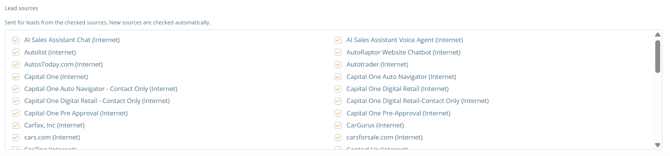
Once enabled, new leads from those sources will receive the CARS Compliance message as their first written response.
Last updated 10/02/2026