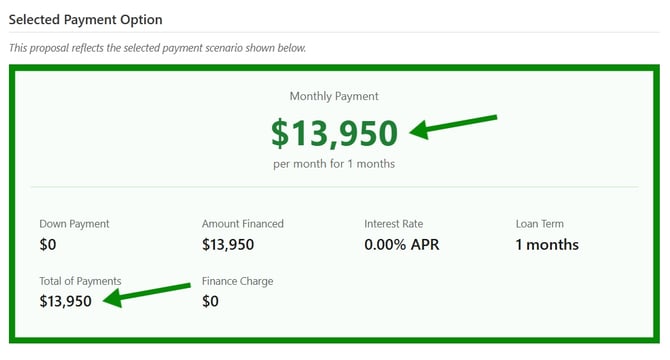
Steps:
1. Create a New Payment Deal
- Open the Pencil tool.
- Select New Payment Deal.
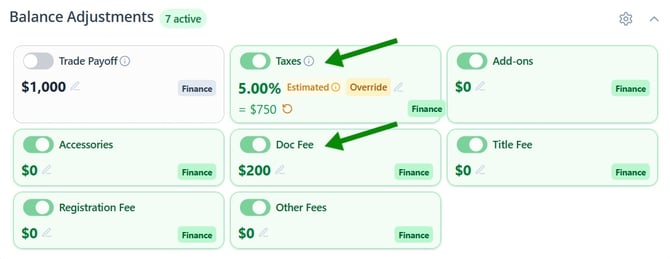
2. Enter Balance Adjustments
- Add any applicable balance adjustments, including:
- Taxes
- Documentation fees
- Any other applicable fees
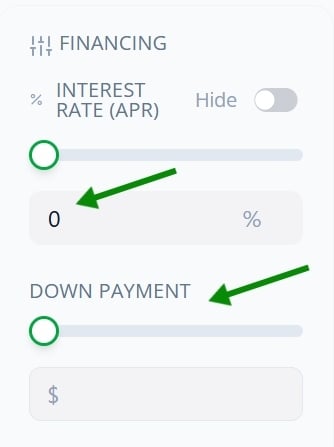
3. Configure Financing Options
- Since this is a cash deal, set all financing amounts and options to $0.
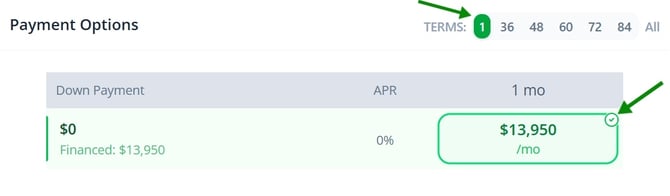
4. Select Cash Payment Terms
- Navigate to the payment options section.
- Select the Cash payment option.
- Set the Term to 1.
- Ensure the appropriate option is selected.
5. Generate the Proposal
- Click Generate PDF.
- Select Print Proposal.
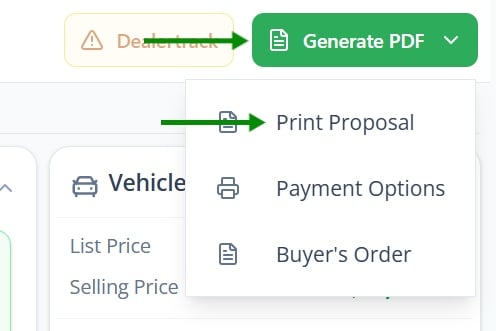
The generated proposal will display accurate pricing, including the customer's out-the-door total.