
Key Steps
1. Access Admin Settings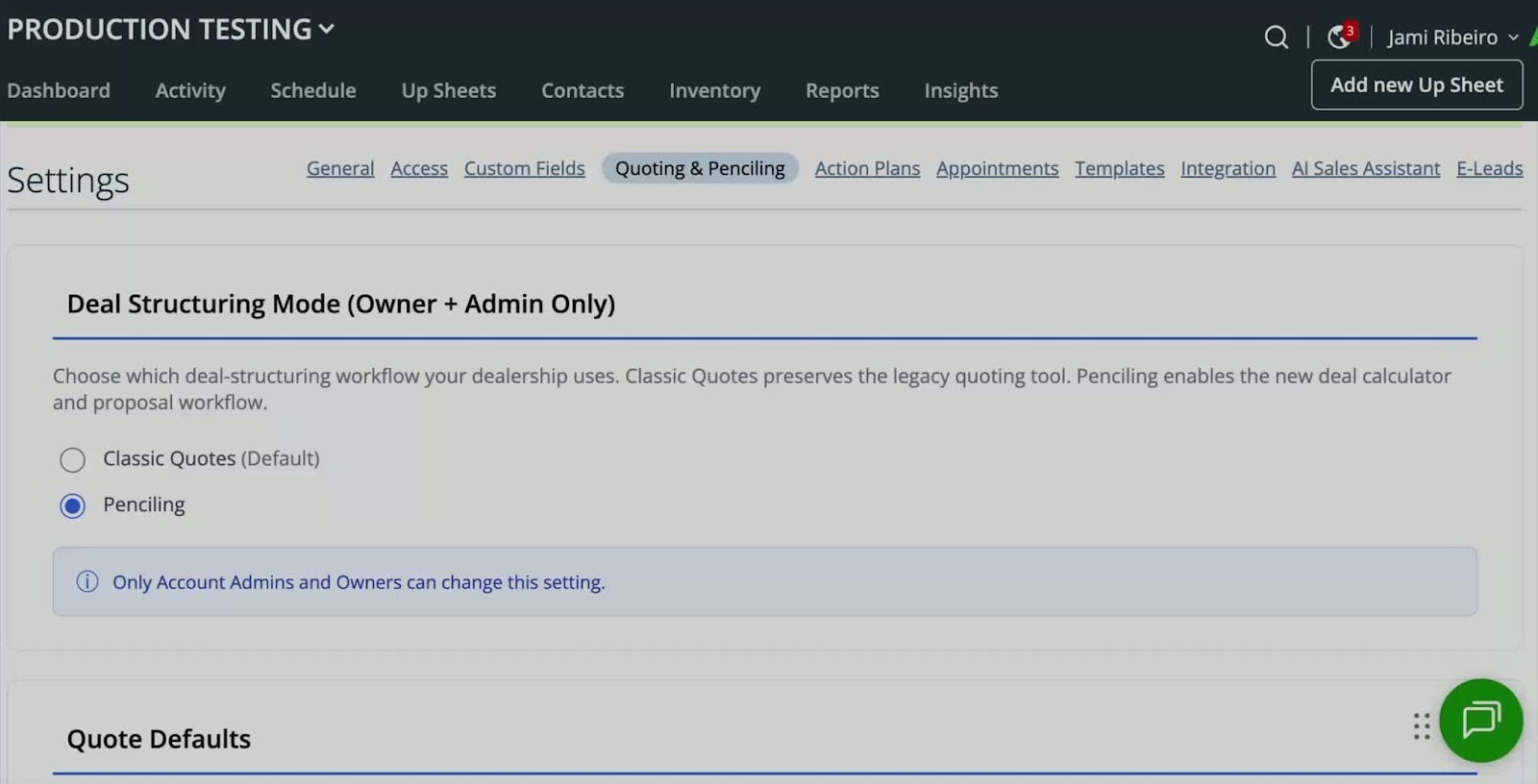
- Navigate to the Admin's backend settings.
- Locate the section labeled 'Quoting & Penciling'.
- Choose between the classic quote configuration or the new Penciling tool.
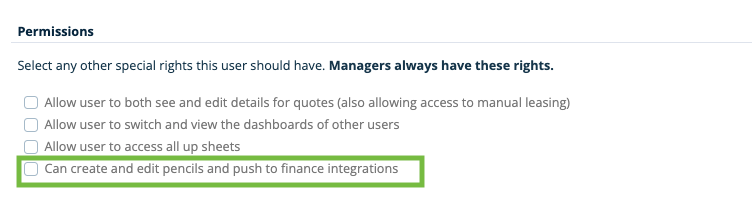
- If you would like to give Sales Reps Access to Pencilling
- Go over to Users and check the box in the user profile “ Can create and edit pencils and push finance integrations”
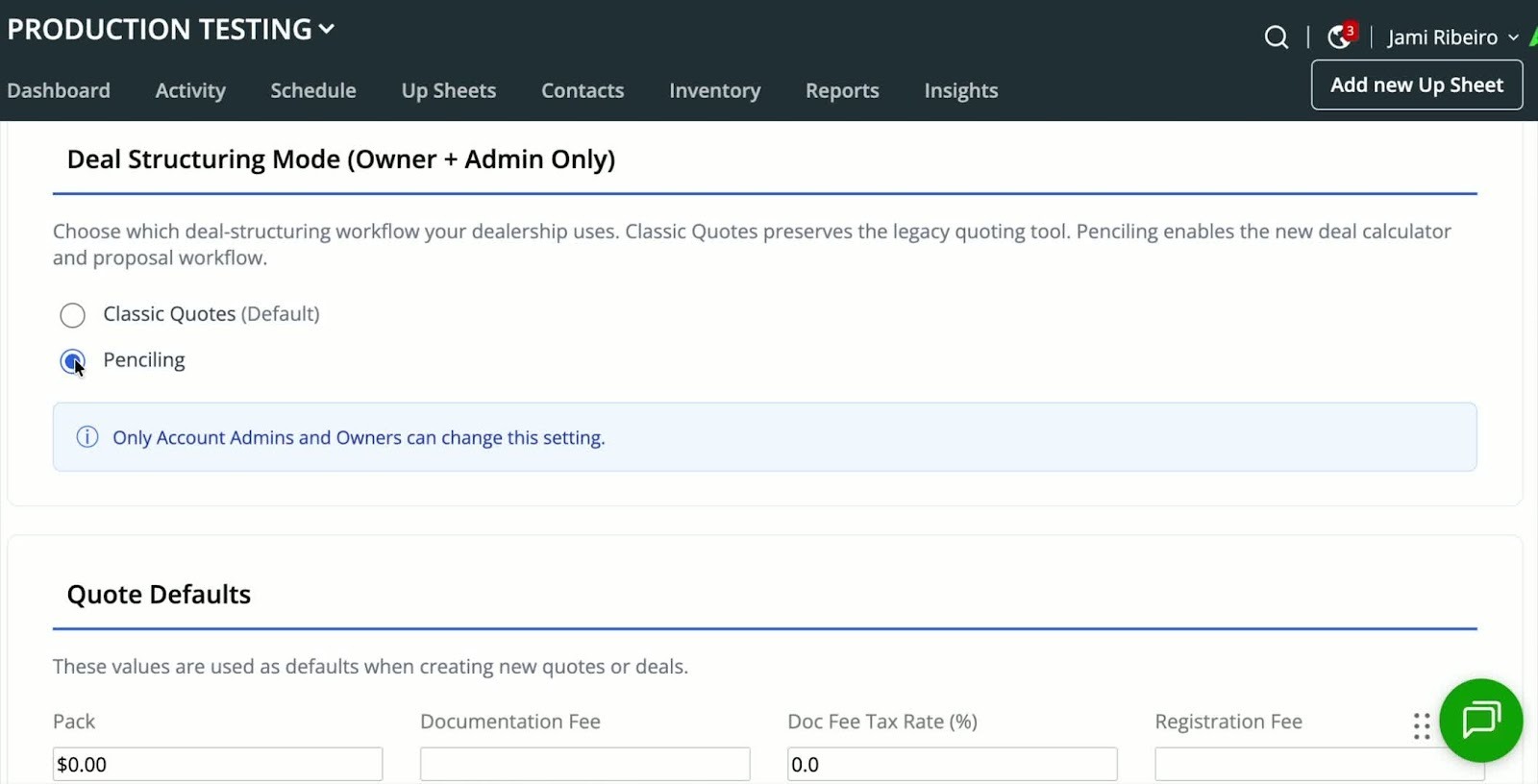
- Click next to the Penciling option to enable it.
- Save your changes.
3. Fill Required Information
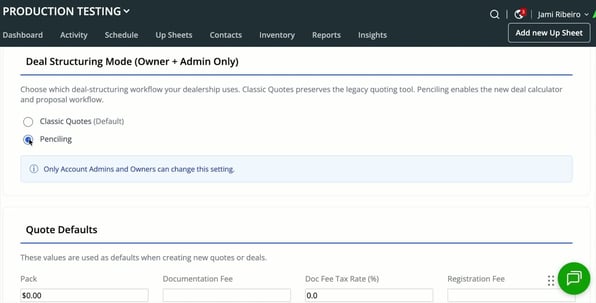
- Enter any necessary information for the Penciling tool.
- Ensure to fill out the required field for state tax as a default.
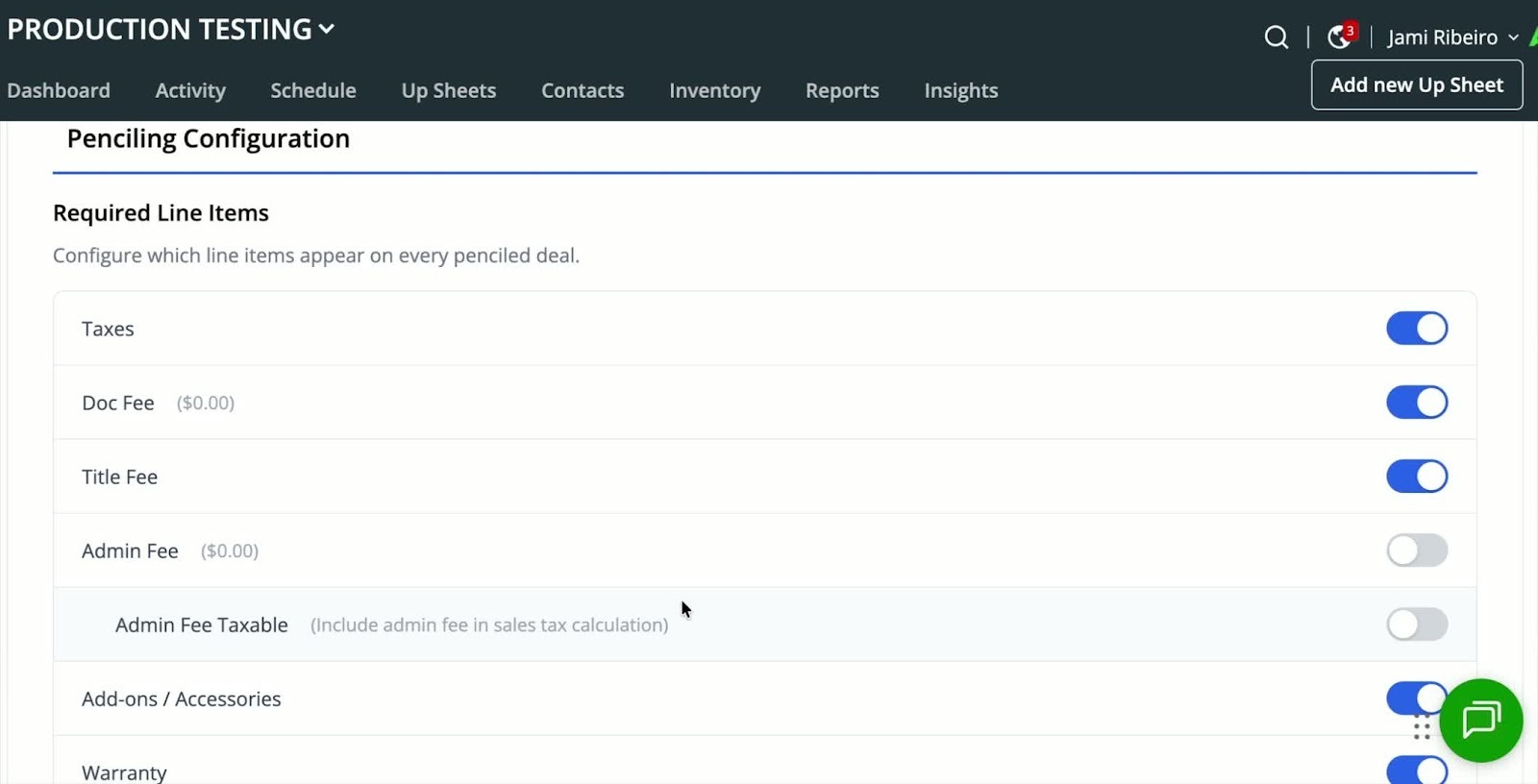
- Decide whether to turn on or off taxes and fee options.
- This will determine the visibility of required fields for users on the front end.
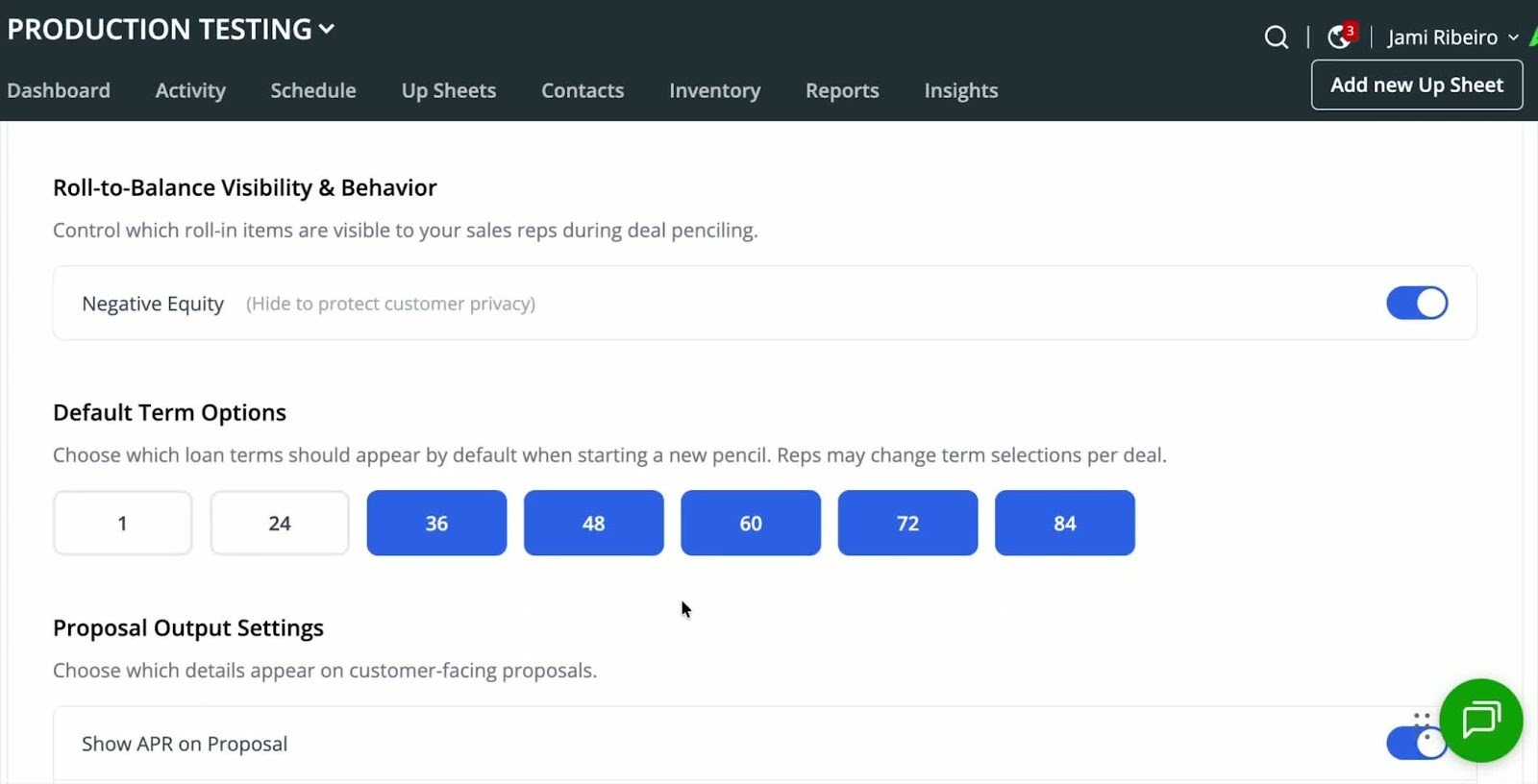
- Choose whether to roll negative equity into the balance.
- Select Term Option 1 allows you to work up a Cash Deal
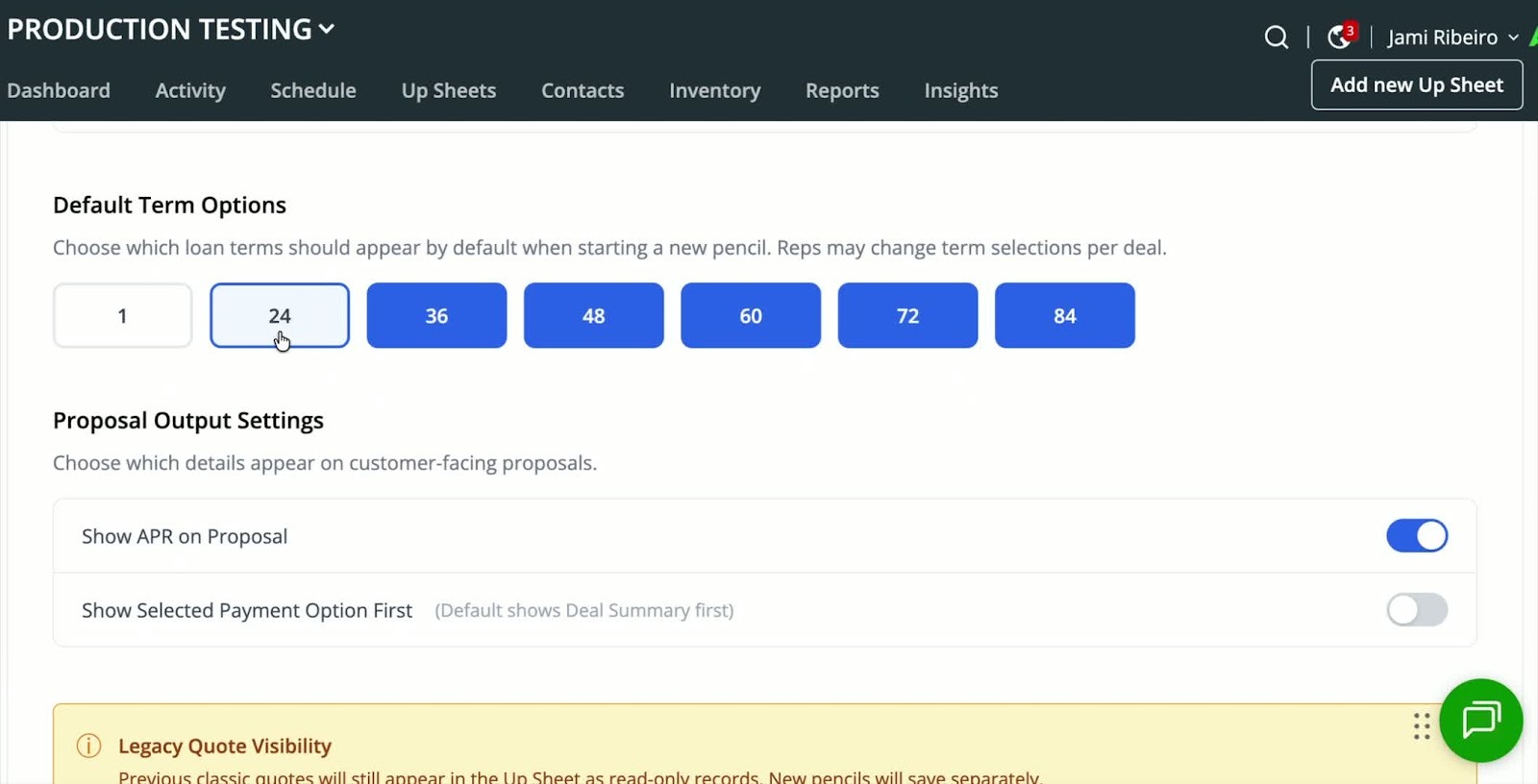
- Set the default terms you wish to offer.
- Ensure these terms can be selected on the front end.
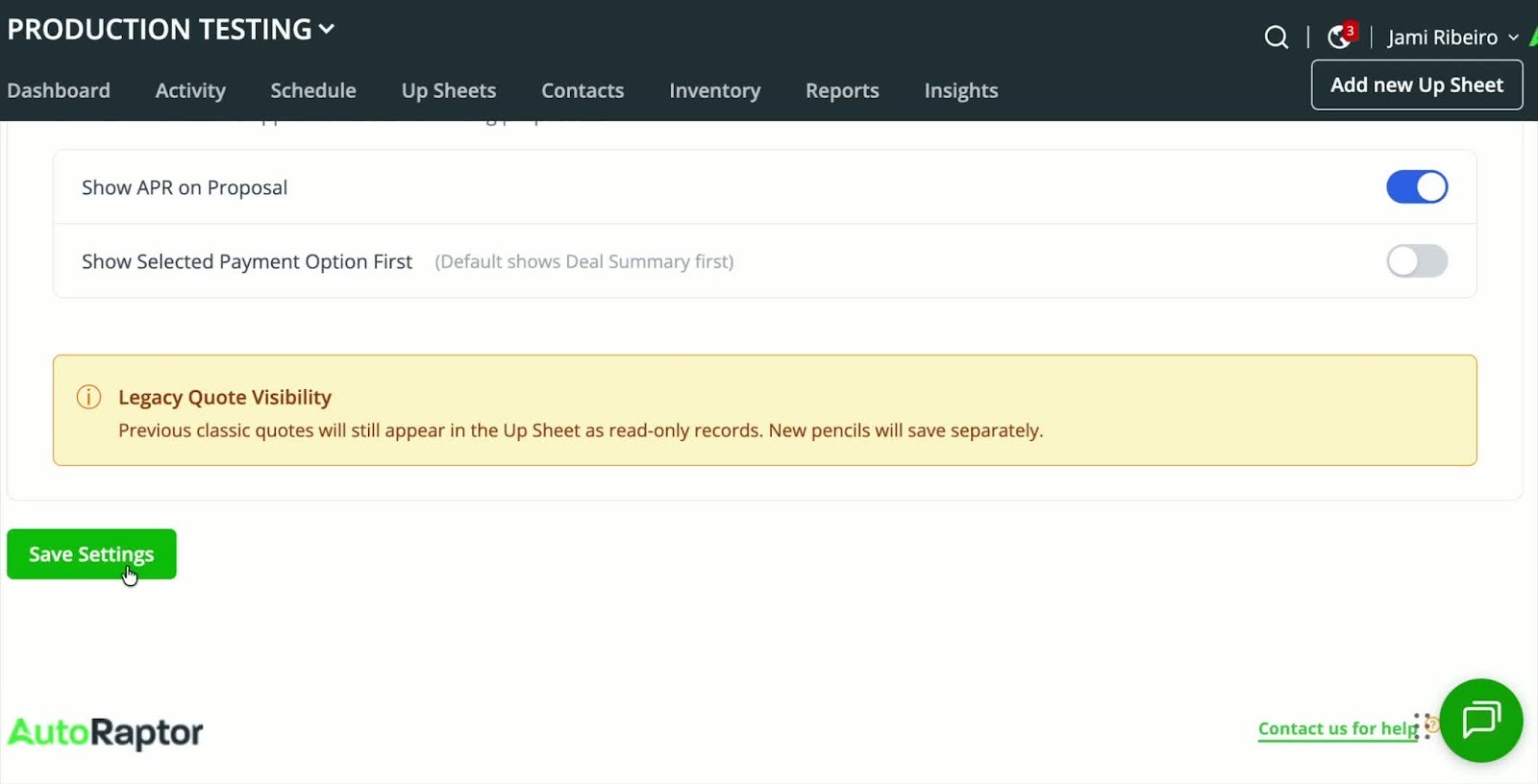
- Adjust settings to control what kind of output appears on your forms.
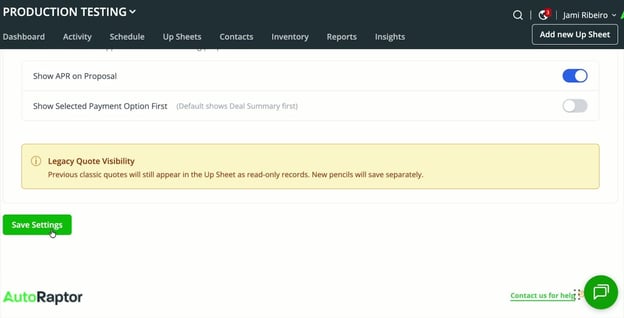
- After making all necessary configurations, ensure to save your settings.
Link to Loom
https://loom.com/share/601357eab8f844d6b1d51a00e3b50fd7