
Admin: Turning On Sales Stages
Sales Stages is enabled per dealership from Settings.
- Go to Settings > Select Dealership Name
- Select > Sales Stages.
- Under Sales Stages check Sales Stages enabled for this dealership.
- Optional: check Require a note on every stage change if you want users to leave a note each time they move an Up Sheet to a new stage.
- Click Save settings.
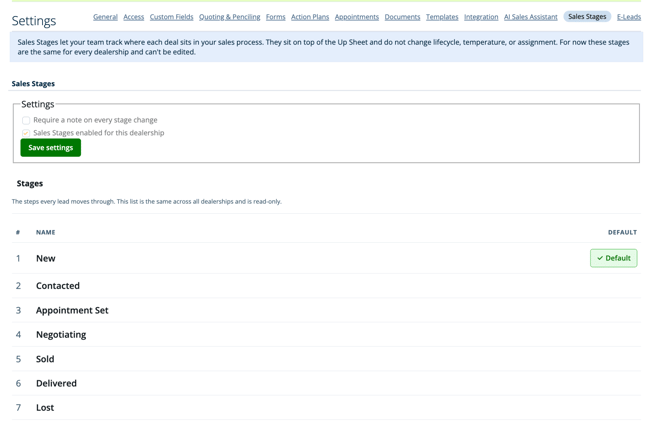
The Stages list below the settings panel shows the full set of stages available. This list is read-only and identical across all dealerships.
|
# |
Stage |
Notes |
|
1 |
New |
Default stage for every newly created Up Sheet. |
|
2 |
Contacted |
Catch-all stage for Up Sheets that don't meet the criteria for any other stage. |
|
3 |
Appointment Set |
Applied automatically when an appointment exists on the Up Sheet. |
|
4 |
Negotiating |
Applied automatically when a quote or pencil exists on the Up Sheet. |
|
5 |
Sold |
Previously a temperature value; now a stage. |
|
6 |
Delivered |
Previously a temperature value; now a stage. |
|
7 |
Lost |
Previously a temperature value; now a stage. |
How Existing Up Sheets Are Assigned a Stage
When Sales Stages is turned on for the first time, every existing Up Sheet is automatically assigned a stage — no Up Sheet is left unset. AutoRaptor applies the following rules, in order, to each Up Sheet:
- If the Up Sheet's temperature is currently Lost, Sold, or Delivered, its stage is set to the matching stage (Lost, Sold, or Delivered).
- If the Up Sheet is considered “Fresh” (no outreach has occurred yet), its stage is set to New.
- If the Up Sheet has a quote or a pencil, its stage is set to Negotiating.
- If the Up Sheet has an appointment, its stage is set to Appointment Set.
- Any remaining Up Sheet is set to Contacted.
These rules are evaluated in the order above, so an Up Sheet is assigned the first matching stage.
Using Sales Stages on the Up Sheet
Once enabled, a Stage dropdown appears at the top of every Up Sheet, next to the temperature badge.
- Click Stage: [current stage] to open the Sales Stage list.
- Select a new stage to move the deal forward (or back) in the sales process. The current stage is marked with a checkmark.
- If your dealership requires a note on stage changes, you'll be prompted to add one before the change is saved.
- Every new Up Sheet is created with a stage of New by default.
- Each stage change is recorded in the Up Sheet's activity log.
Changing the stage does not affect the deal's temperature (Hot/Warm/Cold), lifecycle, or assigned salesperson — those remain independent fields.
Stage is also visible and searchable from the Up Sheets list, so teams can filter or scan deals by where they sit in the sales process.
Note: They cannot be renamed, reordered, or customized in this version. Sold, Delivered, and Lost are now sales stages instead of temperature values. They no longer appear in the temperature dropdown (Hot / Warm / Cold)