
AutoRaptor admins can choose the lead assignment method that best fits their dealership’s workflow.
How to select a lead assignment method:
• Click the Settings tab
• Select the dealership name you want to update
• Open the “E-lead” sub-tab
• Click “Assignment & Auto-Reply”
From here, you can configure the lead assignment method for your dealership.
Lead Assignment Methods:
1. Manager Assigns Leads (Manual):
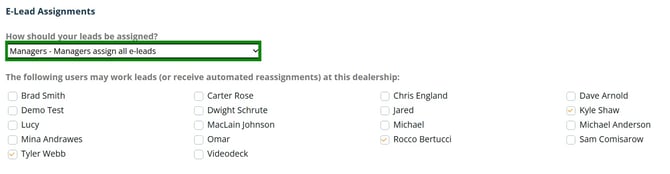
-
Managers manually assign all leads to sales reps.
-
Select "Managers - Managers assign all e-leads" from the drop-down menu.
-
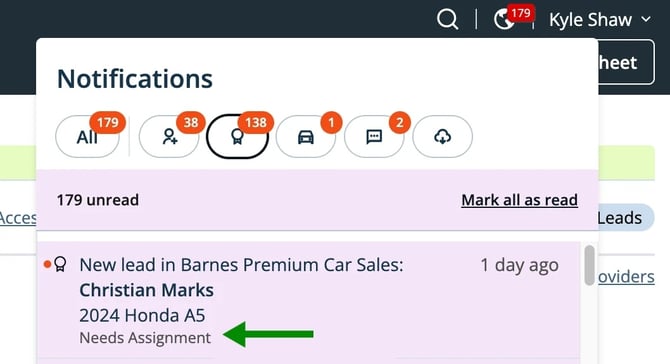
Managers are notified when new e-leads arrive and can assign them to the appropriate sales reps.
-
Ensure you click "Save settings" to apply changes.
2. Sales Reps Claim Leads (Manual):
-
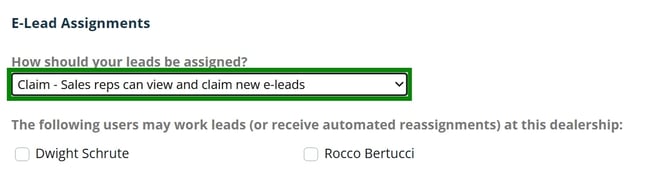
Sales reps can claim new e-leads themselves.
-
Select "Claim - Sales reps can view and claim new e-leads" from the drop-down menu.
-
Check the names of the reps qualified to claim leads.
-
Save your settings.
-
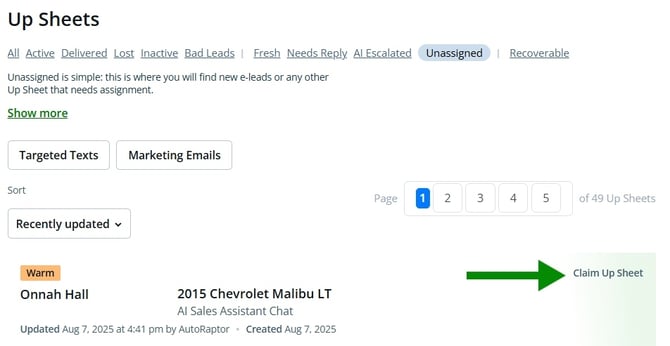
Sales reps will receive a notification in the system when a new lead arrives.
-
They can then click the "Claim Up Sheet" button to claim the lead.
3. Round Robin (Automatic):
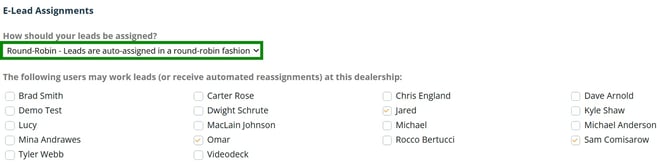
- Leads are automatically distributed equally among available users, with minimal manager intervention.
- Select the users eligible for Round Robin distribution and save your settings.
- When utilizing Round Robin for the dealership, check out our Round Robin Dealership Report.
- Users must enter their hours for the day to receive e-leads.
- This is a great way to hold your users accountable. If they do not log their hours, they will not receive leads for the day.
- Note: you are not able to go back in time. I.e. if a user starts working at 9am, and the user does not log their hours until 10am, a user is only eligible to receive leads from 10am to their stop time the user has listed.
4. Round Robin 24/7 (Automatic):
-
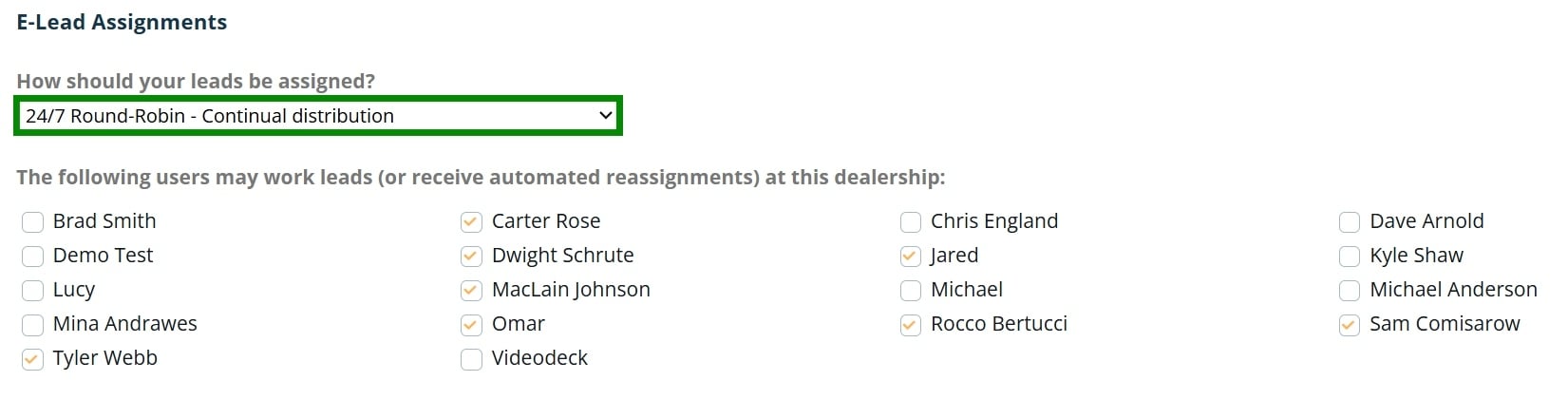
Leads are evenly distributed over a 24-hour period among eligible sales reps and managers.
-
Similar to the standard Round Robin, select eligible users and save the settings.
-
When utilizing 24/7 Round Robin for the dealership, check out our Round Robin Dealership Report.