
This article walks through each admin setting so you can control who gets contacted, how often, and what the message says.
Every night the feature runs four steps:
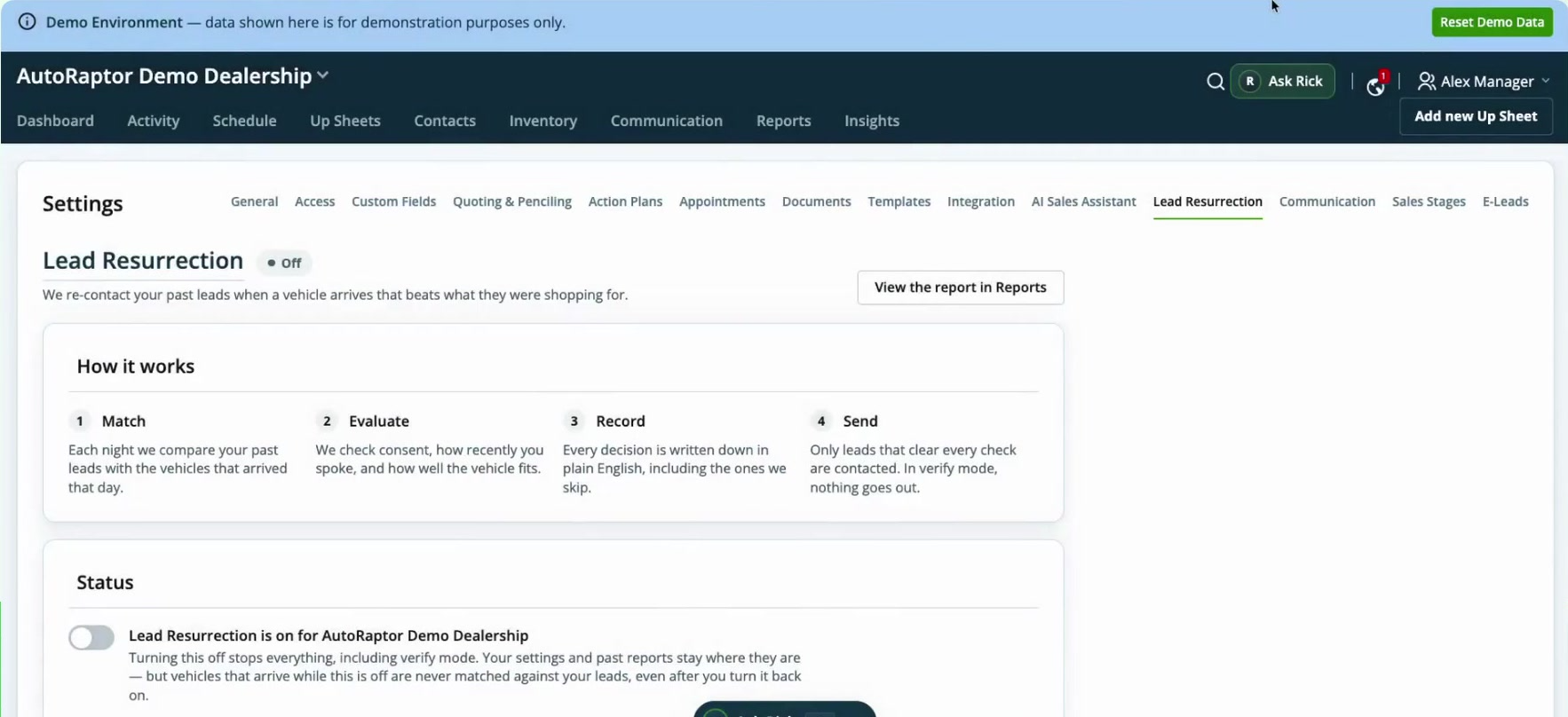
- Match – We compare your past leads with the vehicles that arrived that day.
- Evaluate – We check consent, how recently you spoke, and how well the vehicle fits.
- Record – Every decision is written down in plain English, including the ones we skip.
- Send – Only leads that clear every check are contacted. In verify mode, nothing goes out.
Where to find Lead Resurrection settings
- Go to Settings.
- Click the Lead Resurrection tab (between AI Sales Assistant and Communication).
The status badge next to the page title shows whether the feature is On or Off. Use View the report in Reports to jump to the Lead Resurrection report.
Configure your settings
Step 1: Status
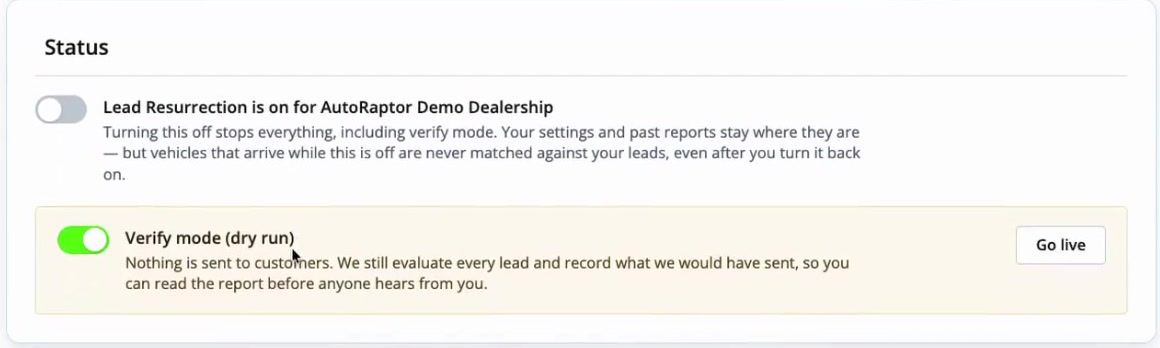
The Lead Resurrection toggle turns the feature on or off for your dealership. Turning it off stops everything, including verify mode. Your settings and past reports are kept, but vehicles that arrive while it is off are never matched against your leads, even after you turn it back on.
Verify mode (dry run) lets you test safely. Nothing is sent to customers, but we still evaluate every lead and record what we would have sent, so you can review the report first. When you're ready to send real messages, click Go live.
Step 2: Audiences
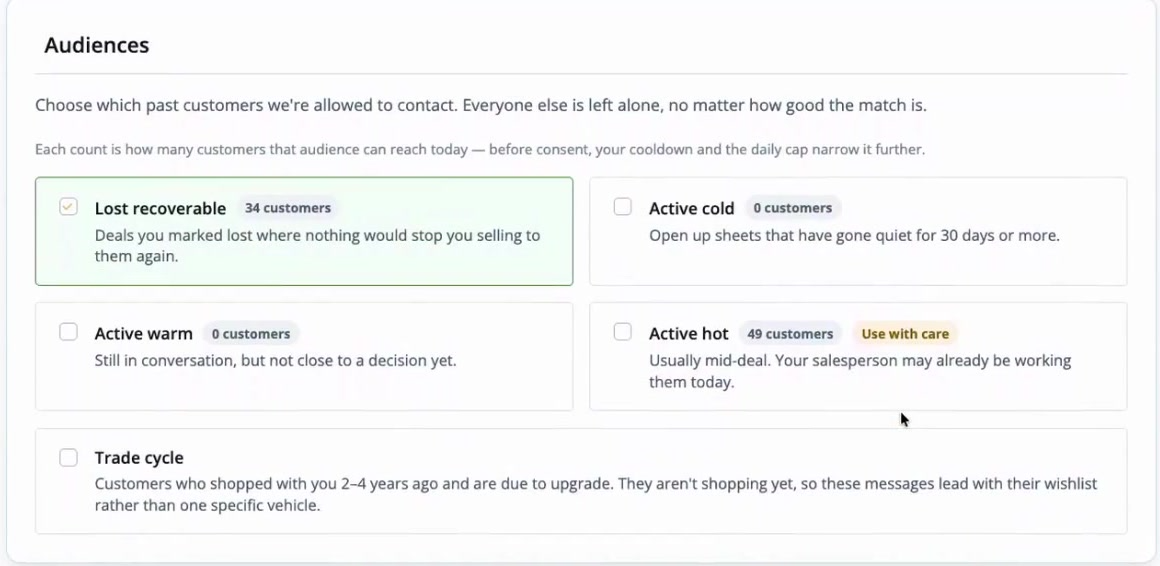
Choose which past customers we're allowed to contact. Everyone else is left alone, no matter how good the match is. Each audience shows how many customers it can reach today; consent, your cooldown and the daily cap narrow that further.
|
Audience |
Who it includes |
|---|---|
|
Lost recoverable |
Deals you marked lost where nothing would stop you selling to them again. |
|
Active cold |
Open Up Sheets that have gone quiet for 30 days or more. |
|
Active warm |
Still in conversation, but not close to a decision yet. |
|
Active hot (Use with care) |
Usually mid-deal. Your salesperson may already be working them today. |
|
Trade cycle |
Customers who shopped with you 2–4 years ago and are due to upgrade. These messages lead with their wishlist rather than one specific vehicle. |
Step 3: Limits
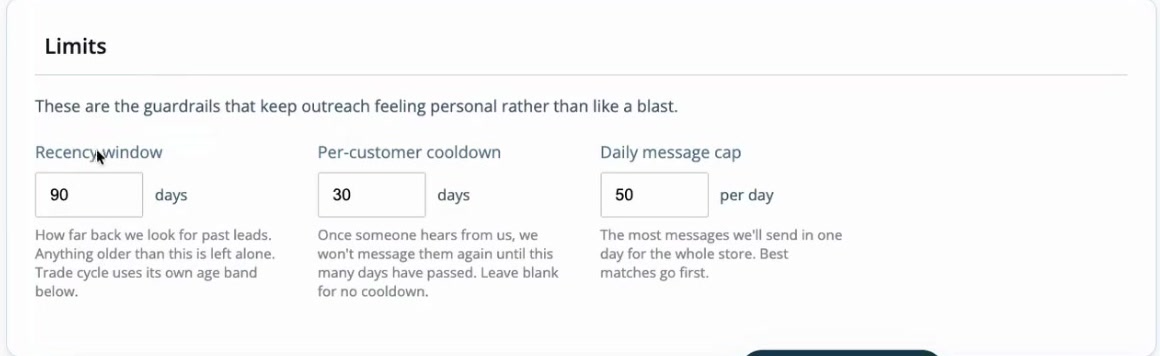
Limits are the guardrails that keep outreach feeling personal rather than like a blast.
|
Setting |
What it does |
Shown in video |
|---|---|---|
|
Recency window |
How far back we look for past leads. Anything older is left alone. Trade cycle uses its own age band. |
90 days |
|
Per-customer cooldown |
Once someone hears from us, we won't message them again until this many days pass. Leave blank for no cooldown. |
30 days |
|
Daily message cap |
The most messages we'll send in one day for the whole store. Best matches go first. |
50 per day |
Step 4: Outreach
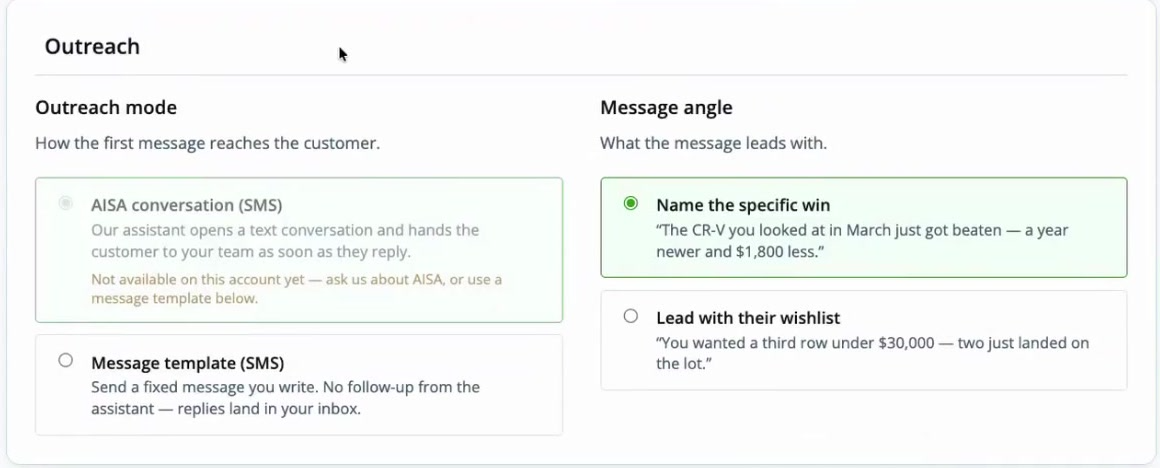
Outreach mode sets how the first message reaches the customer:
- AISA conversation (SMS) – Our assistant opens a text conversation and hands the customer to your team as soon as they reply. This requires AISA on your account.
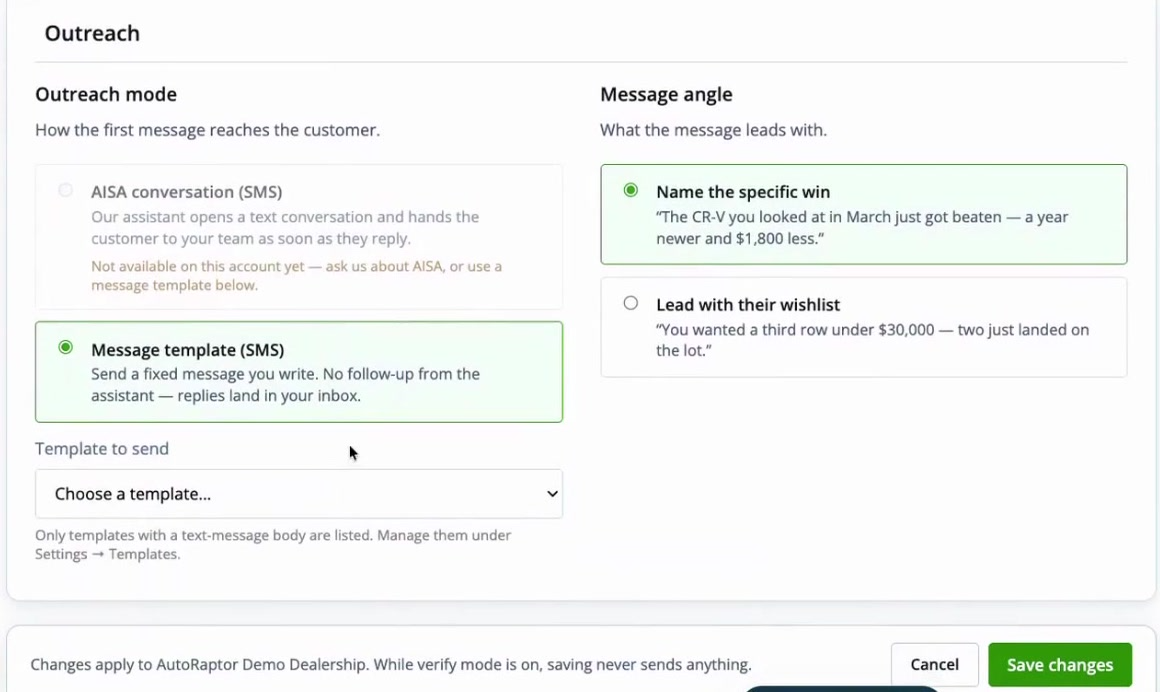
- Message template (SMS) – Sends a fixed message you write. There is no follow-up from the assistant; replies land in your inbox. When selected, pick a template from Template to send. Only templates with a text-message body are listed. Manage them under Settings → Templates.
Message angle sets what the message leads with:
- Name the specific win – For example: "The CR-V you looked at in March just got beaten — a year newer and $1,800 less."
- Lead with their wishlist – For example: "You wanted a third row under $30,000 — two just landed on the lot."
Click Save changes at the bottom of the page, or Cancel to discard them. Changes apply to your dealership only, and while verify mode is on, saving never sends anything.
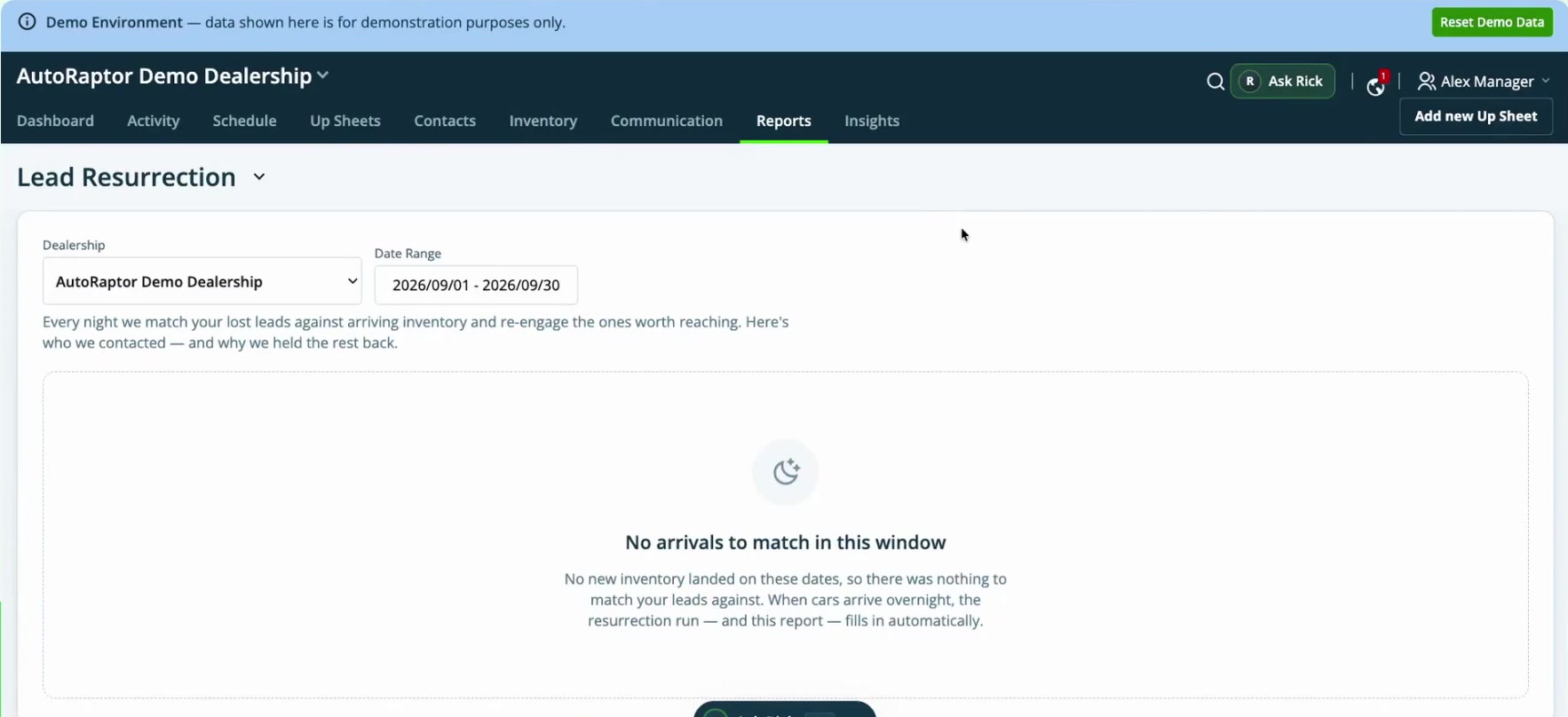
To see results, go to Reports → Lead Resurrection. Pick the dealership and date range to see who we contacted and why we held the rest back. If no new inventory arrived in that window, the report shows No arrivals to match in this window; it fills in automatically after the next overnight run.
Video walkthrough
Here is the video walkthrough:
https://48309173.hs-sites.com/share/video/221977614117
Last updated 11/27/2026