
Each night, when new vehicles land in inventory, AutoRaptor checks them against lost Up Sheets and flags customers who now have a good reason to come back.
A lost lead can be matched when an arriving vehicle:
- Matches the wishlist they saved
- Costs less than the vehicle they were quoted
- Is a newer model year than the vehicle they were quoted
- Has fewer miles than the vehicle they were quoted
Lead Resurrection starts in preview mode. Nothing is sent to customers until you review the report and turn on sending.
Step-by-step walkthrough
Part 1: Set up lost leads for matching
Step 1
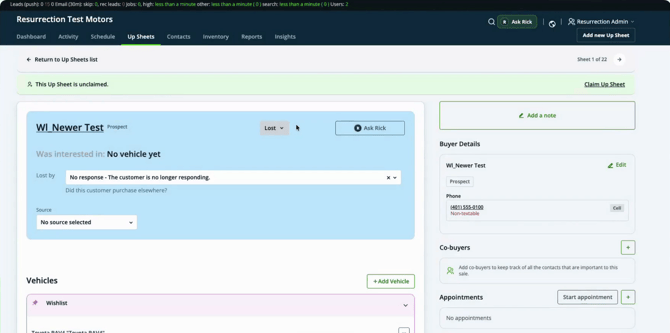
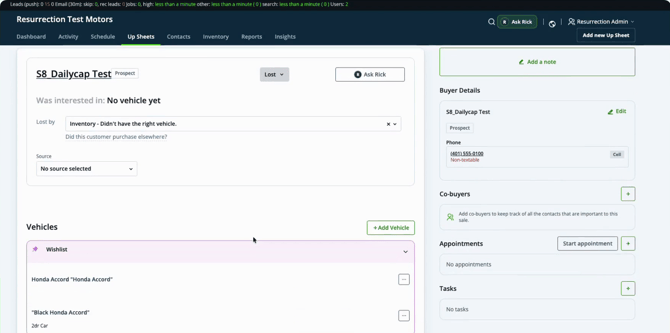
Open a lost Up Sheet. Go to Up Sheets and open a lead with the Lost status. The Lost by field shows why the deal was lost, such as No response or Inventory - Didn't have the right vehicle.
Step 2
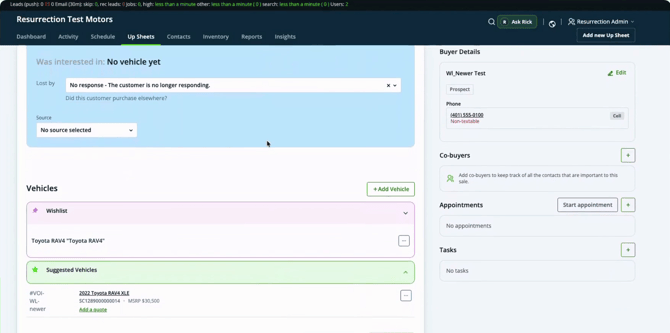
Review the Vehicles section. Scroll to Vehicles. The Wishlist shows what the customer wants, and Suggested Vehicles shows matching units from your inventory.
Step 3
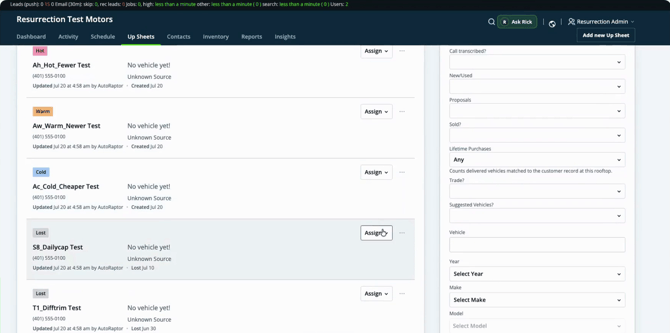
Find other lost leads in your Up Sheets list. Lost leads are tagged Lost in the Up Sheets list, along with the date they were lost. Open any lost lead to add or update its wishlist.
Step 4
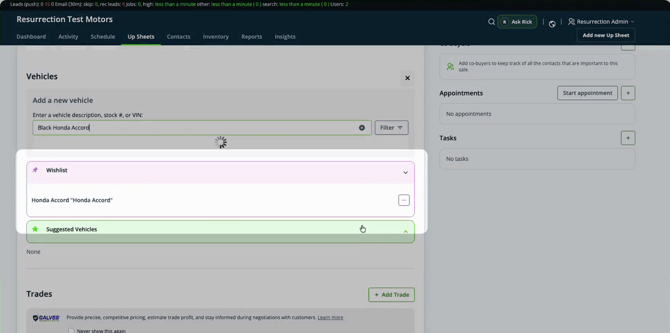
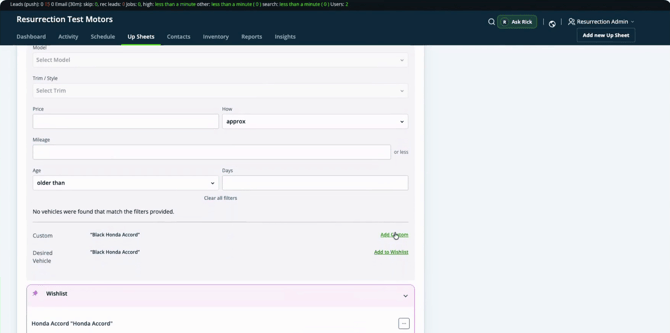
Search for the vehicle the customer wants. Click + Add Vehicle. Enter a vehicle description, stock #, or VIN (for example, Black Honda Accord). Use Filter to narrow by body style, year, make, model, trim, price, mileage, or age.
Step 5
Add it to the wishlist. If no in-stock vehicle matches, click Add to Wishlist next to Desired Vehicle. This saves the customer's preference so future arrivals can be matched against it.
Step 6
Confirm the wishlist saved. A Customer preference saved banner appears, and the new entry shows under Wishlist on the Up Sheet.
Part 2: Review the Lead Resurrection report
Step 7
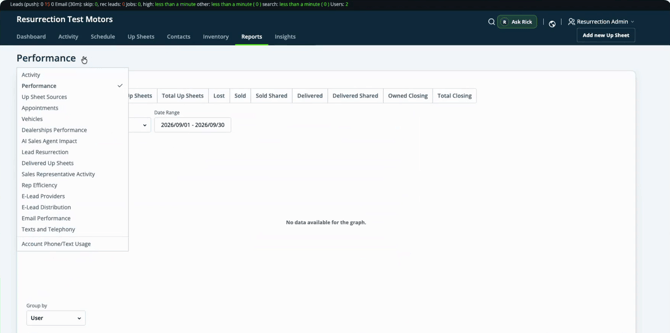
Open the report. Go to Reports, click the report name dropdown, and select Lead Resurrection.
Step 8
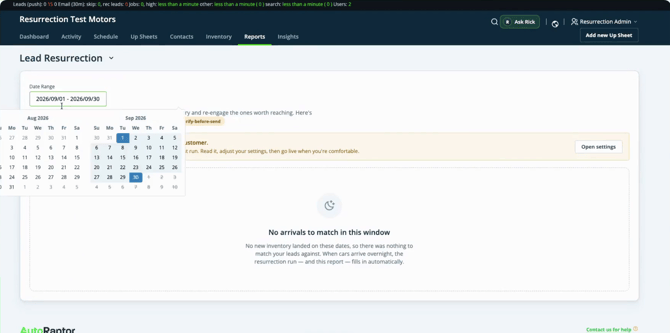
Pick a date range. Use Date Range to choose the dates to review. If no new inventory arrived in that window, the report shows No arrivals to match in this window. It fills in automatically after cars arrive overnight.
Step 9
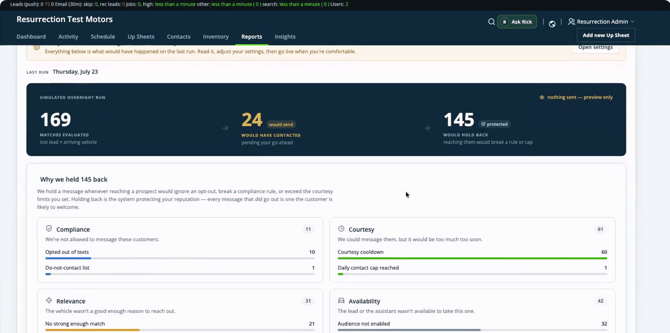
Read the run summary. The top card shows the last overnight run:
- Matches evaluated: every lost lead × arriving vehicle pair checked
- Would have contacted: messages ready to send, pending your go-ahead
- Would hold back: leads protected because reaching them would break a rule or cap
While the banner reads nothing sent — preview only, no messages go out.
Step 10
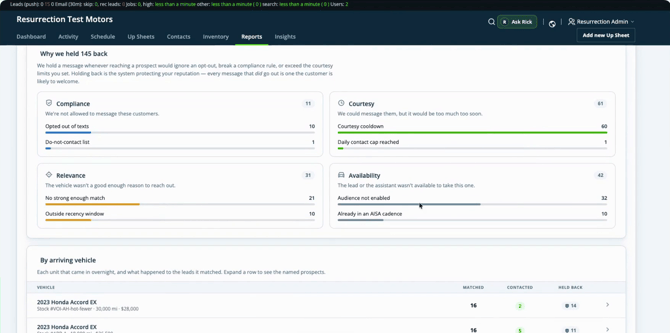
Review why leads were held back. The Why we held back section groups protected leads into four categories:
|
Category |
What it means |
Reasons |
|---|---|---|
|
Compliance |
We're not allowed to message these customers |
Opted out of texts, Do-not-contact list |
|
Courtesy |
We could message them, but it would be too much too soon |
Courtesy cooldown, Daily contact cap reached |
|
Relevance |
The vehicle wasn't a good enough reason to reach out |
No strong enough match, Outside recency window |
|
Availability |
The lead or the assistant wasn't available |
Audience not enabled, Already in an AISA cadence |
Step 11
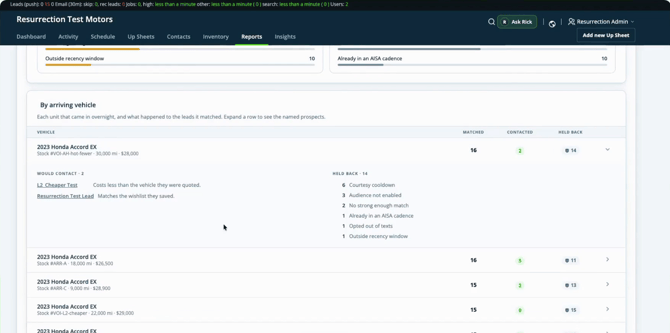
Check results by arriving vehicle. By arriving vehicle lists each unit that came in overnight with how many leads it Matched, Contacted, and Held back. Expand a row to see named prospects and the reason for each.
Step 12
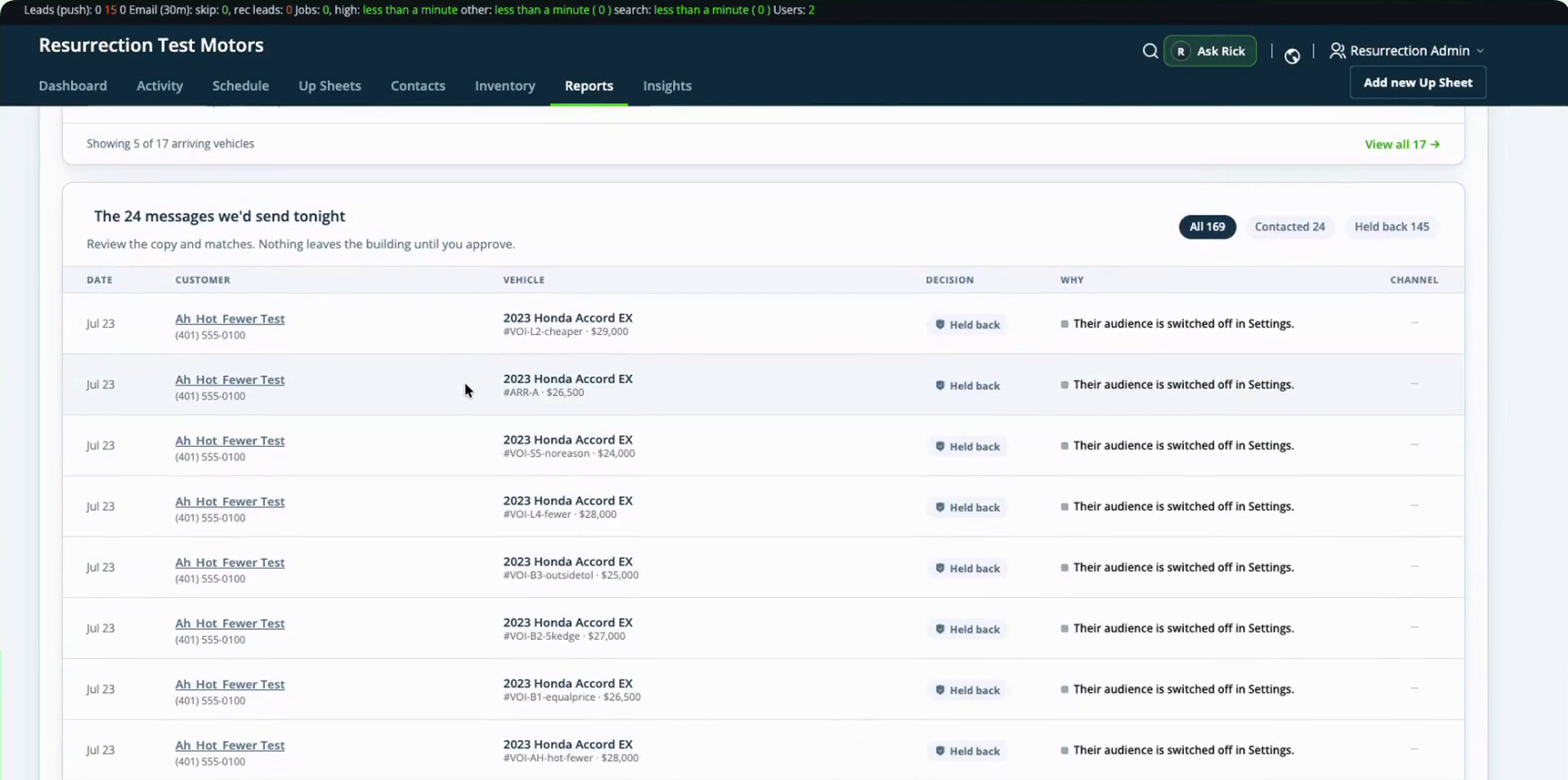
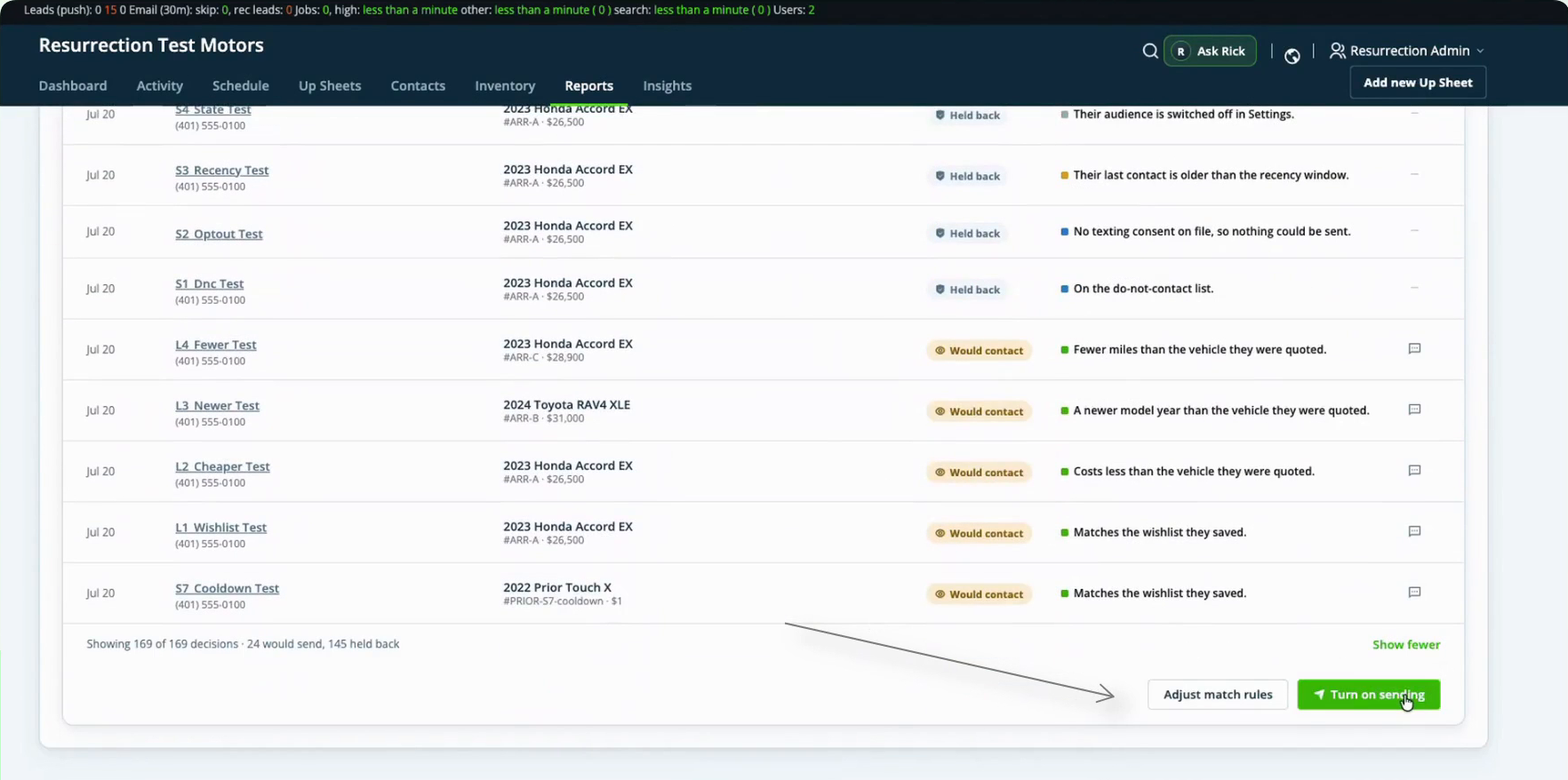
Review the messages. The messages table lists each decision with the date, customer, vehicle, decision (Would contact or Held back), and why. Filter with All, Contacted, or Held back, and click View every decision to see the full list.
Step 13
Adjust rules or go live. Click Adjust match rules to change your settings. When you're comfortable with the results, click Turn on sending to start re-engaging matched leads.
Tips
- Keep wishlists current on lost Up Sheets. The more specific the wishlist, the better the matches.
- Review a few preview runs before turning on sending, so you know what customers will receive.
- Held-back leads are working as intended. The system protects your reputation by skipping anyone who opted out, heard from you recently, or isn't a strong match.
- If many leads show Audience not enabled, check your Lead Resurrection settings through Adjust match rules.
Video walkthrough
Here is the video walkthrough:
https://48309173.hs-sites.com/share/video/221976715095
Last updated 11/27/2026