
With new options to filter and save your searches, it’s easier than ever to get to the information you need.
Step 1: Click the search bar at the top of your dashboard.
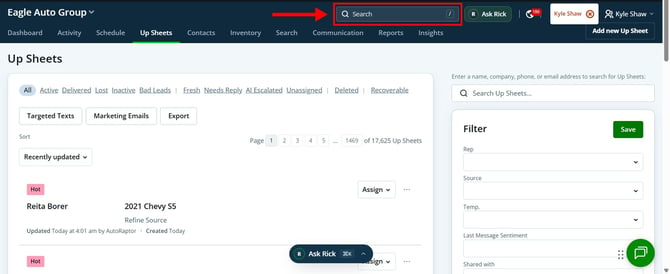
Step 2: Enter any detail—like a phone number, vehicle name, year, make, model, stock, or VIN.
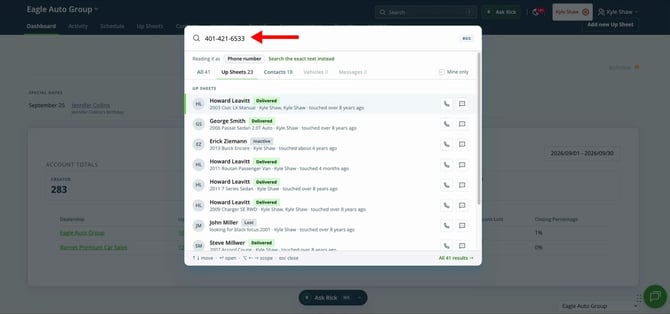
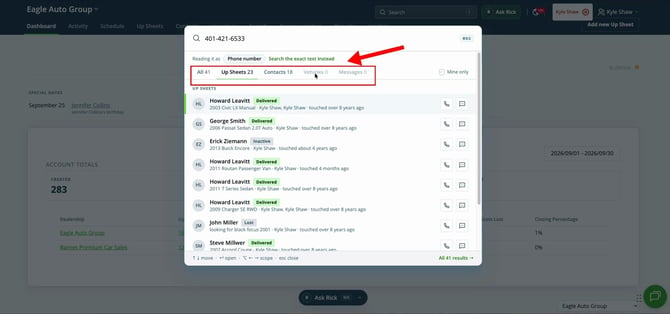
Step 3: View your results organized by Upsheets, Contacts, Vehicles, or Messages.
Step 4: Click the “Mine Only” filter to view results containing only information assigned to you.
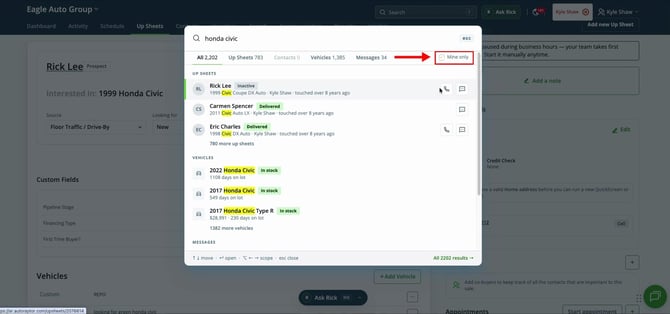
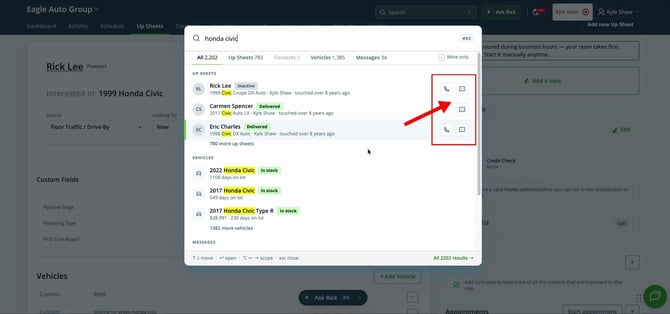
Step 5: Use the quick action buttons beside each result to call or send a text without leaving the search view.
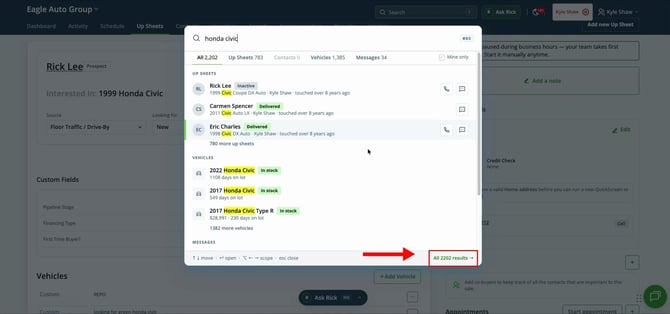
Step 6: Click All at the bottom of the quick results to open the dedicated search page.
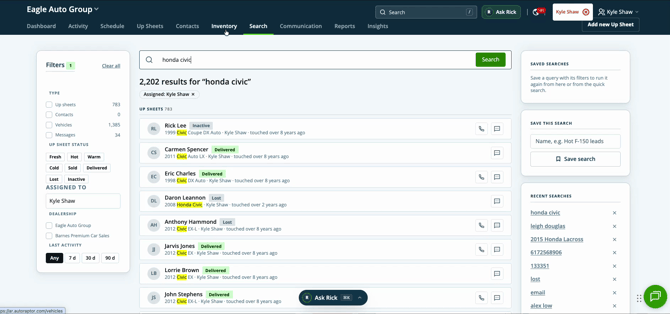
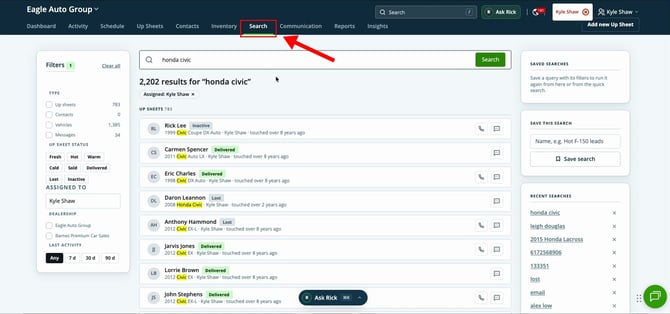
Step 7: Find the search page any time, right next to the Inventory tab.
Step 8: Filter and narrow your search further by location, type, status, user, dealership, or last activity date.
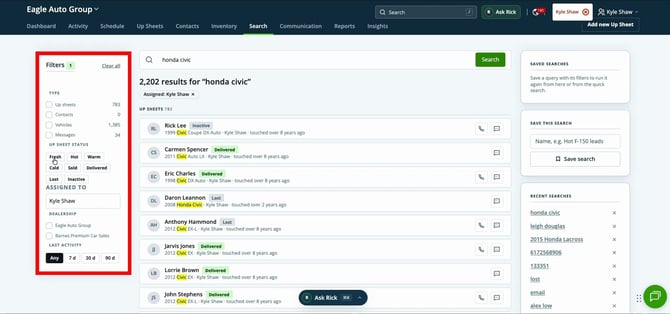
Step 9: Name your search and click “Save” on the right to save it for future access.
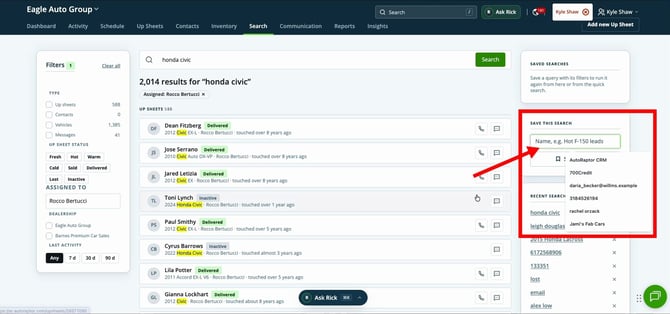
The new search gives you powerful ways to find and act on the exact data you need in Autoraptor. Build and save smart searches so you’re always just a click away from the information that drives your day.
For a more detailed overview of the improved search features, watch the video below for a step-by-step walkthrough:
https://48309173.hs-sites.com/share/video/222832178551
Last Updated: 09/28/2026