
How to save a filter list:
- Go to your Upsheet Filters.
- Select the filters you want to save.
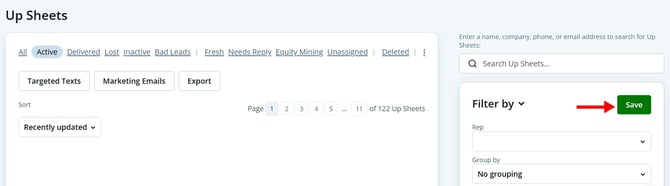
- Click the green Save icon at the top of the Filters section.
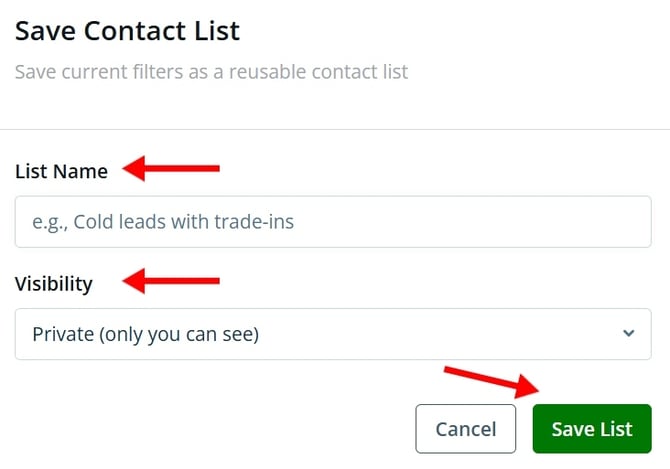
- Enter a name for your saved list.
- Select the desired visibility.
- Click Save.
Once saved, your filter list will be available to select whenever you need it. 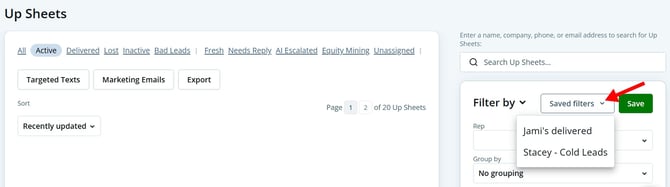
Selecting the saved list will automatically apply all of the filters you previously saved.
Customize Your Upsheet Filters
You can now customize which filters are displayed in your Upsheet Filters section. This allows you to remove filters you do not use and keep only the filter options that are most relevant to your workflow.
How to customize your filters:
- Go to the Upsheet tab and locate the Filters section.
- Click the dropdown arrow next to Filter By.
- All available filter options will be displayed.
- Select the filters you want to display and deselect any filters you want to remove.
- Scroll to the bottom of the list and click Apply.
Your changes will then be applied to the Upsheet Filters section.
Last updated 10/06/2026