
Sending an Image Over Text Message
Sending a Video or File Over Email
Sending a Link Over Text Message
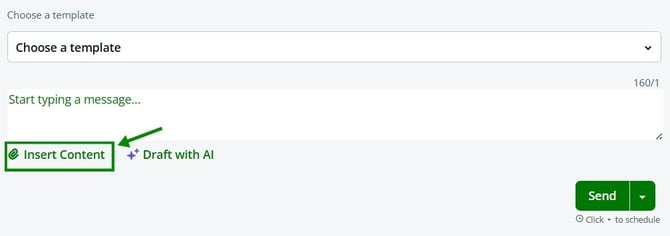
- Click Insert Content
- Choose Images
- Click Browse Images to add an image
- Select the image you want to send
- Click Insert Selected
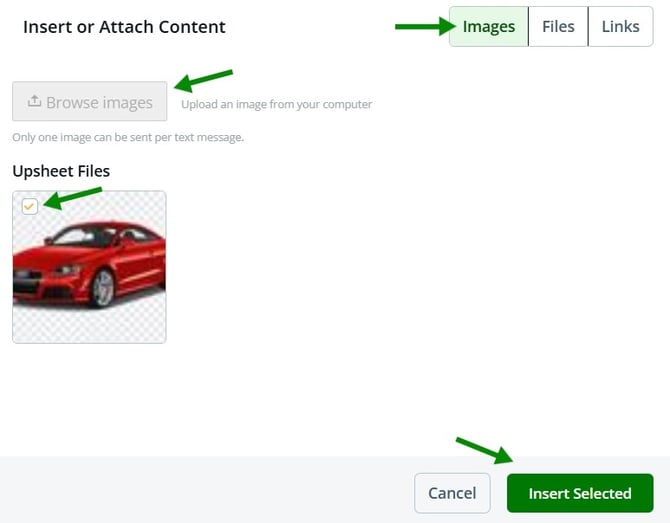
Images will be sent as MMS when available. If MMS is not supported, the image will automatically be sent as a shortened URL at the end of the text message.
Shortened URLs help improve text message delivery success rates.
Sending an Image Over Email
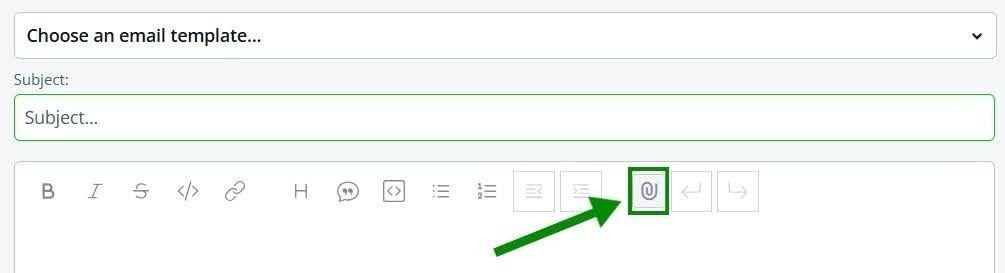
- Click the Attach icon
- Choose Images
- Select the image you want to send
- Click Insert Selected
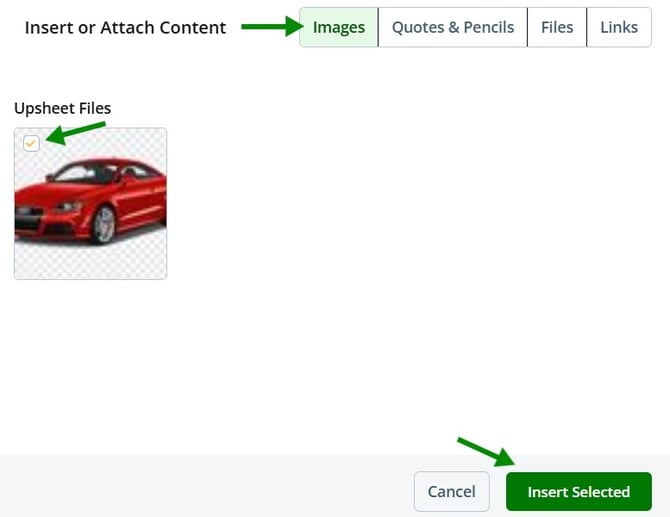
The image will populate directly inside the email.
Sending Quotes or Pencils Over Email
- Click the Attach icon
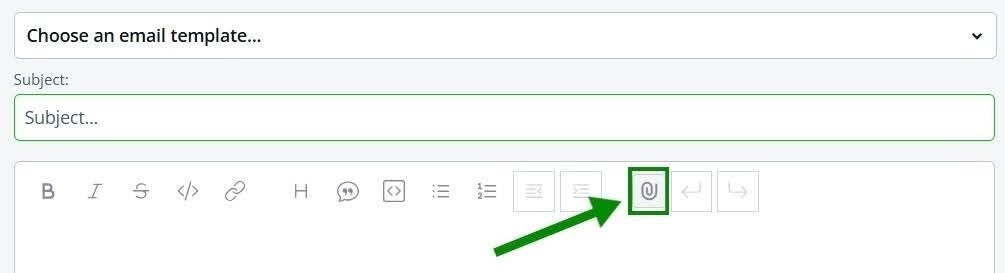
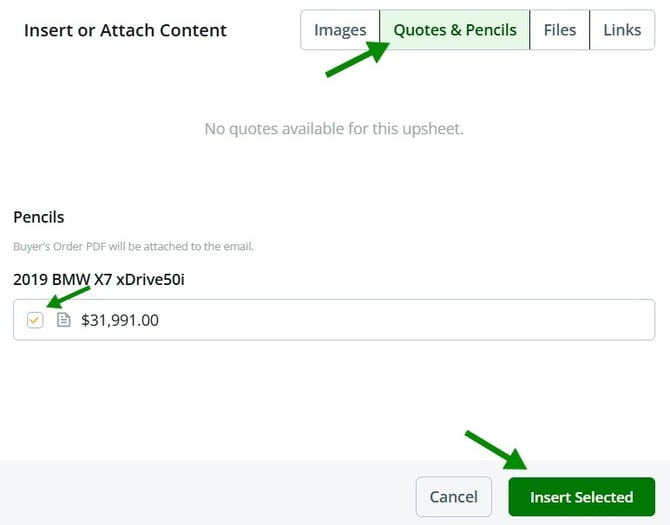
- Choose Quotes & Pencils
- Select the quote or pencil deal you want to send
- Click Insert Selected
Sending a Video or File Over Text Message
- Click Insert Content
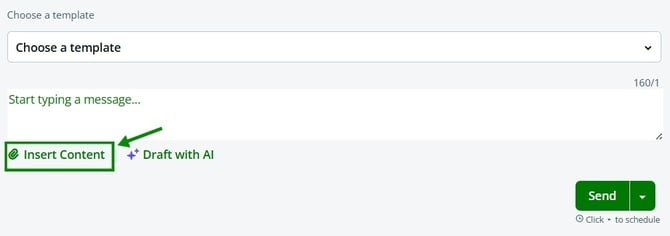
- Choose Files
- Click Browse Files
- Select the video or file you want to send
- Click Insert Selected
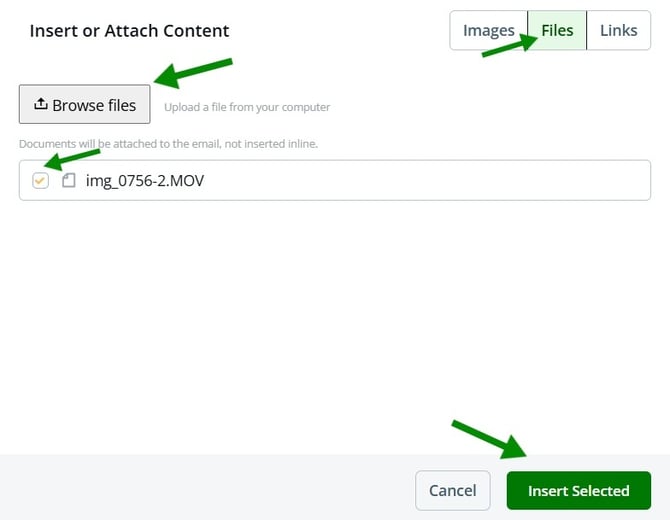
The system will automatically convert the file into a shortened URL, which helps improve text message delivery success rates.
Sending a Video or File Over Email
- Click the Attach icon
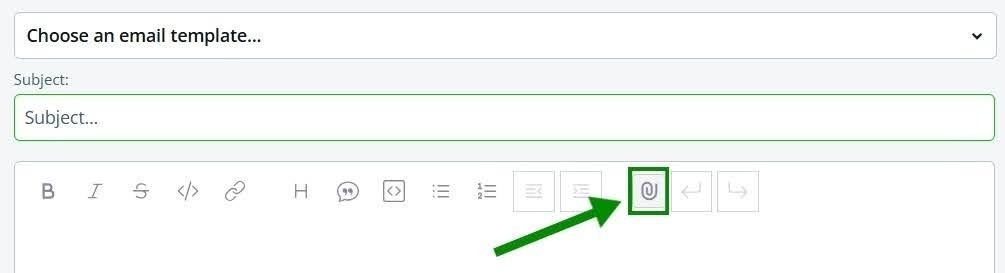
- Choose Files
- Click Browse Files
- Select the video or file you want to send
- Click Insert Selected
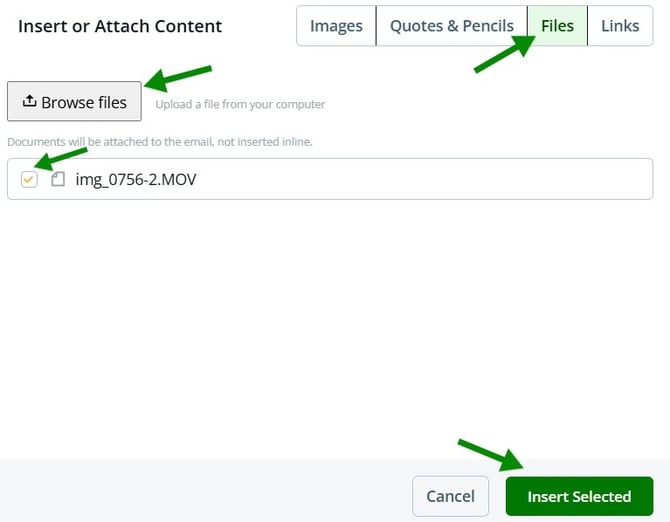
The file will be attached directly to the email.
Sending a Link Over Text Message
- Click Insert Content
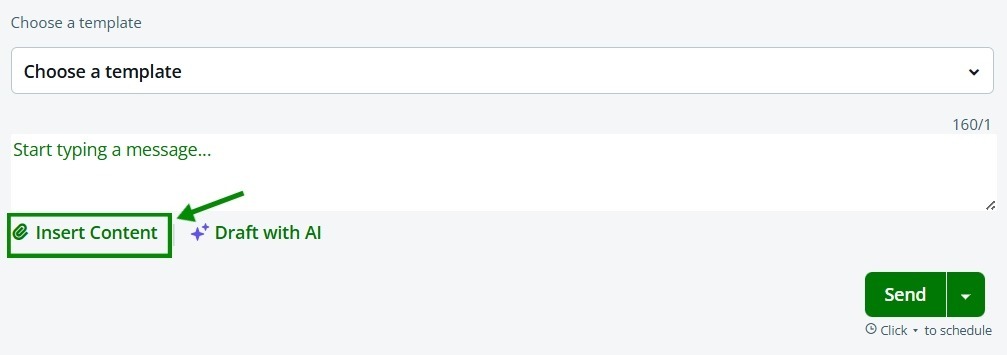
- Choose Links
- Select the link you want to send
- Click Insert Selected
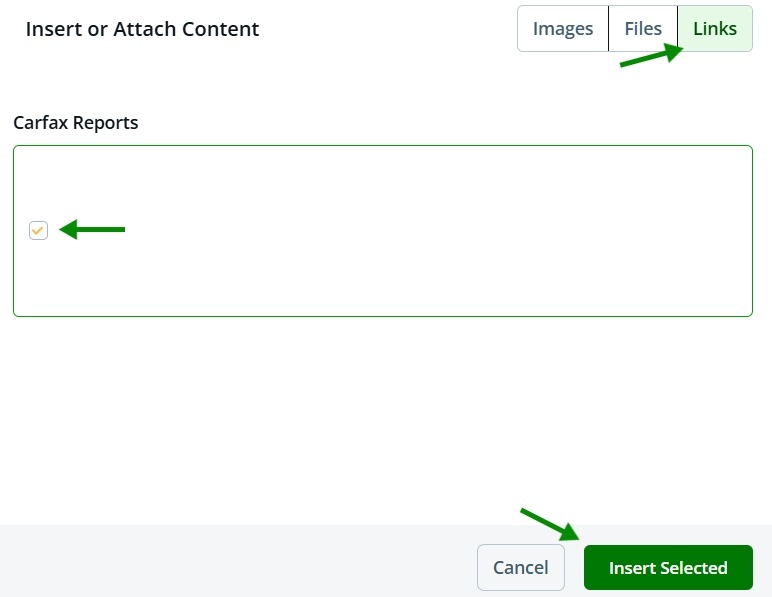
The link will automatically be inserted as a shortened URL to help improve text message delivery success rates.
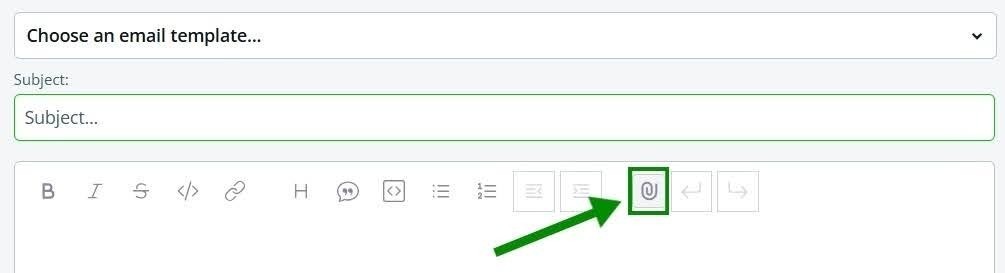
Sending a Link Over Email
- Click the Attach icon
- Choose Links
- Select the link you want to send
- Click Insert Selected
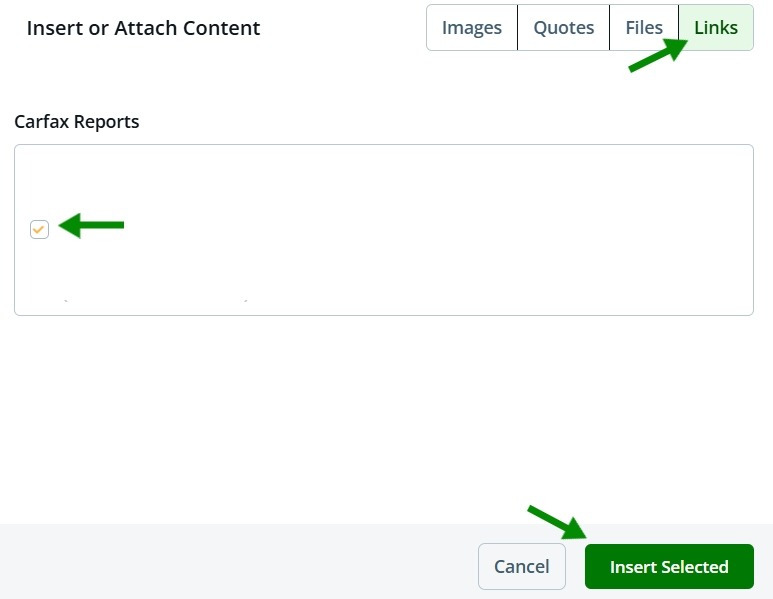
The link will populate directly inside the email.