
1. Introduction to Appointment Management 0:00

-1.jpg?width=670&height=510&name=unnamed%20(1)-1.jpg)
-1.jpg?width=670&height=510&name=unnamed%20(2)-1.jpg)
.jpg?width=670&height=510&name=unnamed%20(3).jpg)
.png?width=670&height=323&name=unnamed%20(1).png)
.png?width=670&height=471&name=unnamed%20(2).png)
Link to Loom: https://loom.com/share/6212eb8e69ed4a0298c2e99671098614
- Overview of the showroom appointment management feature.
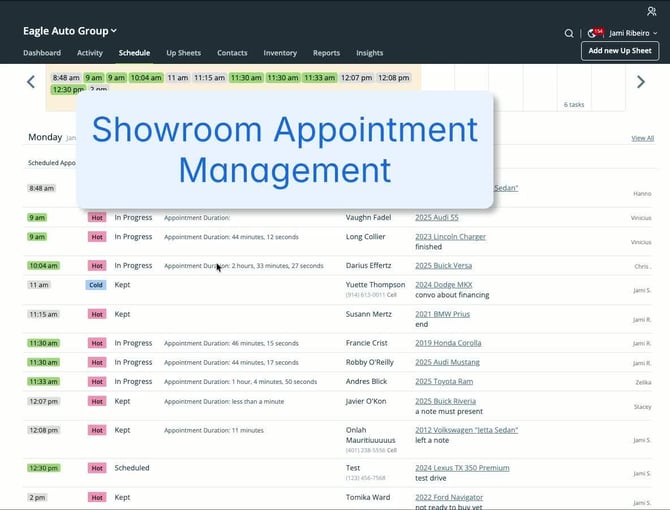
- Allows users to set an appointment to 'in-progress' when a customer is in the showroom.
- Users can see how long the appointment has been ongoing.
3. Starting an Appointment 0:25
- Two methods to set an appointment to 'in-progress':
- From Scheduled Appointments:
- Click 'Start Appointment' on an already scheduled appointment.
- For New Customers:
- Click 'Start Appointment' for a customer just added or walked in.
- From Scheduled Appointments:
4. Viewing In-Progress Appointments 0:36
- All in-progress appointments can be viewed on the Schedule tab.
5. Ending an Appointment 1:04
- To end an appointment:
- Write a note and then click 'End Appointment'.
- Appointments are automatically marked as 'kept'.
6. Manager Permissions 1:25 (If setting is set to this option on the backend of your account).
- Only managers can end appointments.
- This ensures that a manager has acknowledged the appointment.
7. Admin Settings for Management Requirement 2:09
- There is an Admin setting under the General tab to enforce the requirement for manager oversight on ending appointments.
8. Filter by In Progress Appointments
Link to Loom: https://loom.com/share/6212eb8e69ed4a0298c2e99671098614