
Step 1: Log Into AutoRaptor
Log into your AutoRaptor account using your account owner credentials.
Step 2: Open Account Settings
In the top navigation area, click the account drop-down menu and select Settings.
Step 3: Navigate to Billing
On the Settings page, locate the navigation links on the right-hand side.
Click the Billing link (the 5th tab on the top right).
Step 4: Open the Stripe Billing Portal
Select the Manage Billing info button to open the billing portal.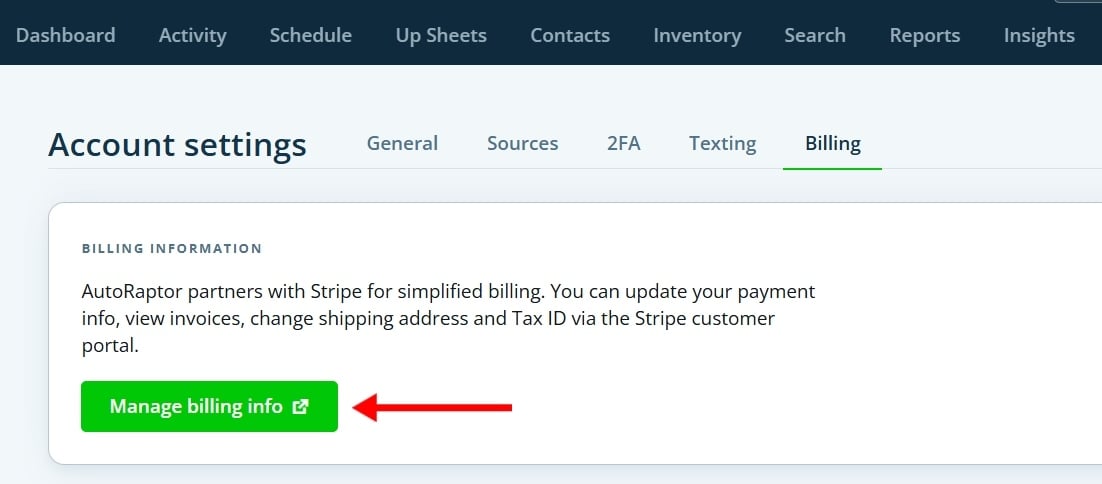
This will take you to the secure payment management page.
Step 5: Add a New Payment Method
Scroll down to the Add Payment Method section.
Click Add Payment Method to begin adding your ACH/bank account information.-2.jpg?width=670&height=279&name=unnamed%20(2)-2.jpg)
Step 6: Link Your Bank Account
Choose the option to add a Bank Account.
Follow the prompts provided by Stripe to securely link your bank account.
Once completed, make sure the “USE AS DEFAULT PAYMENT METHOD” BOX IS CHECKED so the bank account will be used for future ACH payments.
-1.jpg?width=670&height=433&name=unnamed%20(3)-1.jpg)
Video Link:
https://www.loom.com/share/8ee491b14fbe4d4d9069adf38d0107fb
Last updated 09/29/2026