
Overview
Tasks in AutoRaptor now support required calls, specific times, and reminders, so reps can call, log the outcome, and check off work in one place. This article covers five updates:
- Set up call tasks in your action plans
- Call, log and complete tasks in one pop-up
- Pick tasks to complete when you text or email
- Set specific task times with reminders
- Restart the action plan on lead merge
1. Set up call tasks in your action plans
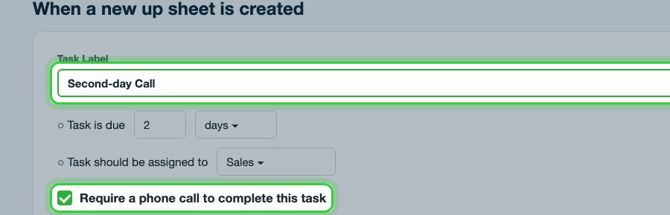
A call task can only be completed by making a phone call. You set this per task in an action plan.
- Go to Settings > Action Plans and open a plan.
- To change an existing task, click Edit next to it.
- To create a new one, click Add a new task, enter the label, and set when it's due and who it's assigned to.
- Check Require a phone call to complete this task.
- Click Save.
Things to know:
- This option is on tasks only, not scheduled messages.
- If leads are already on the plan, their open tasks from that step become call tasks as soon as you save.
- Tasks already completed stay as they are.
2. Call, log and complete tasks in one pop-up
On the Up Sheet, call tasks show a phone icon. Checking a call task doesn't complete it; the dialer opens instead, so the call comes first.
- Check the call task, then click Dial this contact now.
- Once the call is placed, log the outcome (Outgoing Call, Incoming Call or Note) and add any notes.
- Review the task list. Past-due and due-today tasks are listed and already checked. Click Show upcoming tasks to finish a future task early.
- Either reschedule the checked tasks (Tomorrow, In 2 days, Next week, or a date you pick), or click Complete to mark only the checked tasks done.
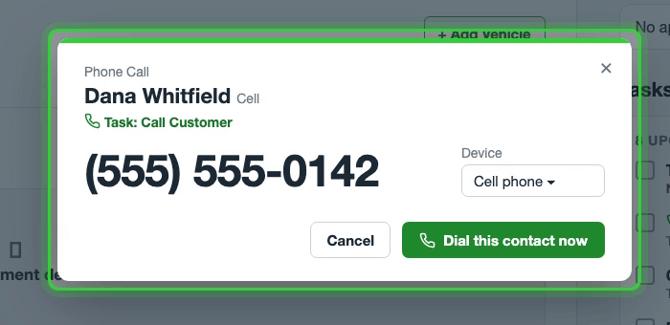
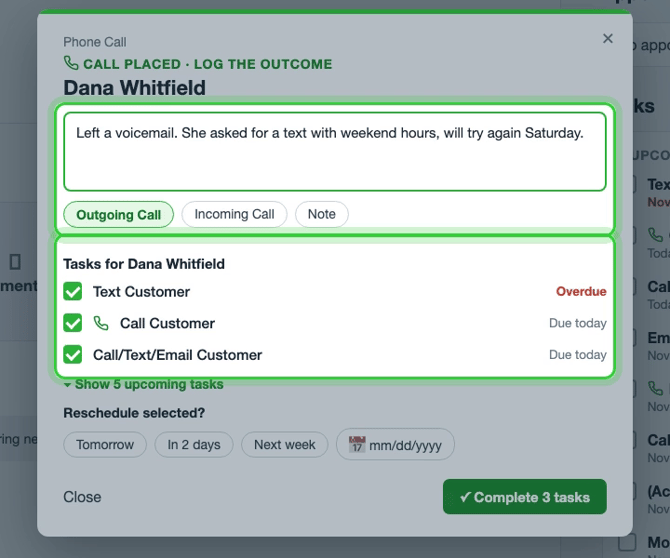
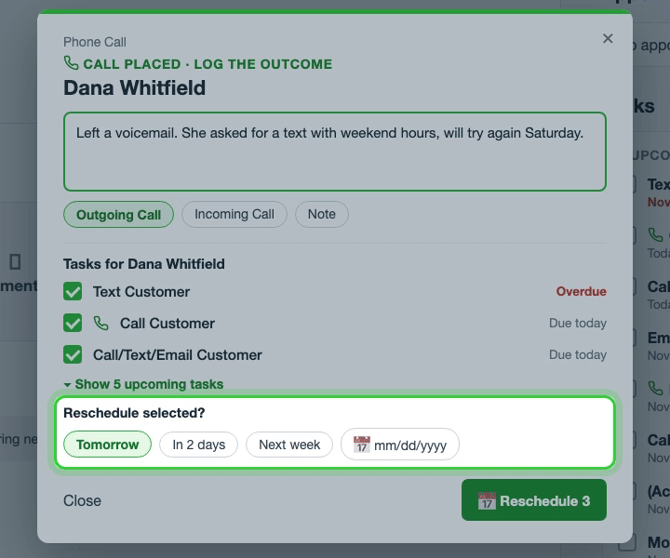
If you close the pop-up without calling, the call task stays open. Clicking the phone number in Buyer Details opens the same pop-up, whether Unified Inbox is on or off.
What counts as a call?
- To this customer: a call to the number on their Up Sheet.
- Made by you: if a teammate already called the customer, you still need to make your own call to complete your task.
- Through AutoRaptor: click-to-call, or a Mainline call linked to the Up Sheet.
Manager option: Complete without a call
Managers get an extra Complete without a call option in the pop-up. Sales reps don't see it. When a manager uses it, a note is added to the task showing who completed it without a call.
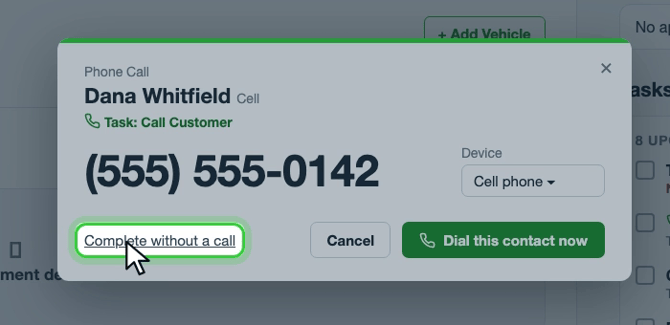
On the Schedule tab
Call tasks show the same phone icon. Checking one, or clicking Complete Task, opens the same dialer.
Clean up overdue tasks in bulk
- On the Schedule tab, click the overdue tasks button.
- Click Select all to check the tasks loaded on screen, or Select all overdue tasks to check every overdue task.
- Choose Complete, Reassign, Reschedule or Delete.
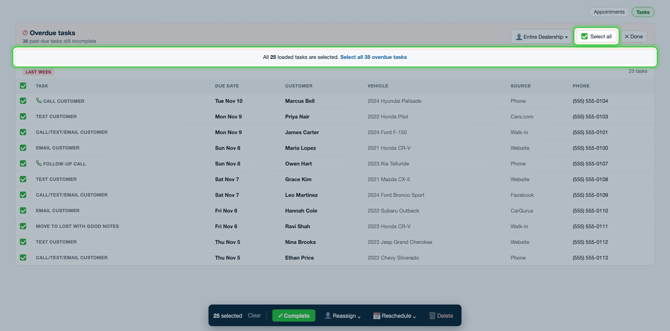
When you complete in bulk, call tasks are skipped, for managers too, because they still need a call.
3. Pick tasks to complete in texts and emails
When you text or email a customer, the message window shows Tasks you can complete for this contact.
- Past-due and due-today tasks each have their own checkbox, checked by default.
- Uncheck anything you don't want completed when you send.
- Click Show upcoming tasks to finish a future task early.
- Call tasks are left off this list because they need a call.
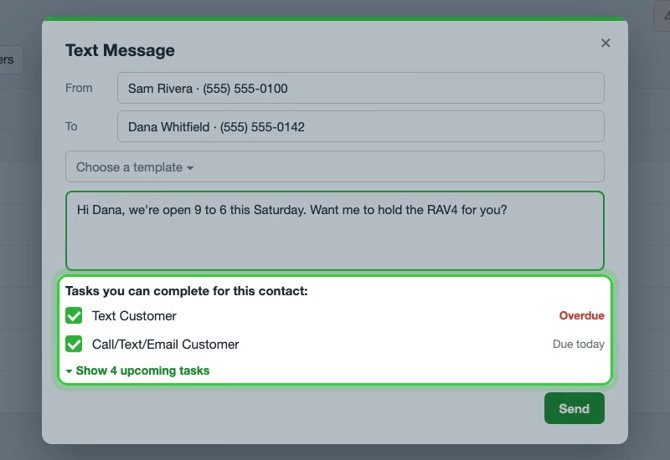
4. Set specific task times with reminders
- On the Up Sheet, click + next to Tasks.
- Enter a task name and pick the date.
- Check Set a specific time and choose the time.
- Click Add Task.
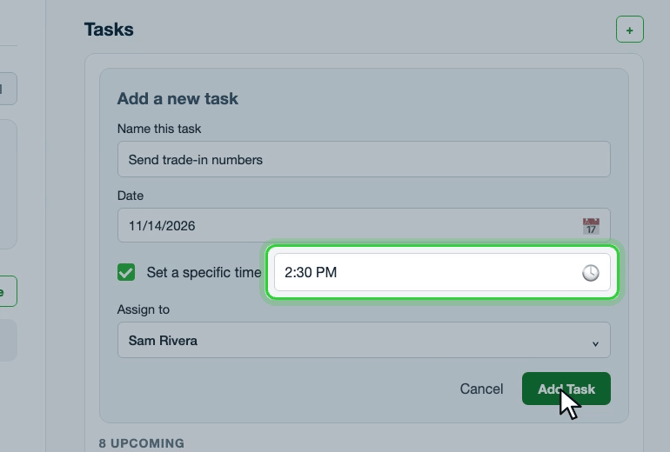
You can also set a time when adding a task from the Schedule tab.
How timed tasks behave:
- The time shows on the task, and timed tasks sort to the top of the day.
- A timed task isn't overdue until the next day.
- At the set time, you get a reminder in the notification bell and a push notification on your computer or phone.
- If the task is assigned to a salesperson, the salesperson and the BDC rep both get the reminder.
- Reschedule a task and you'll be reminded again at the new time.
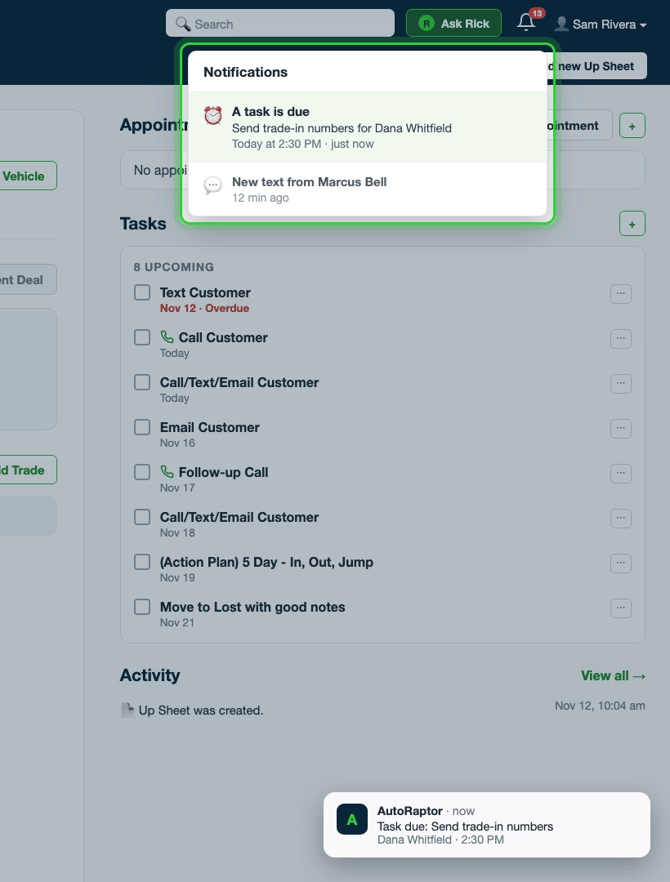
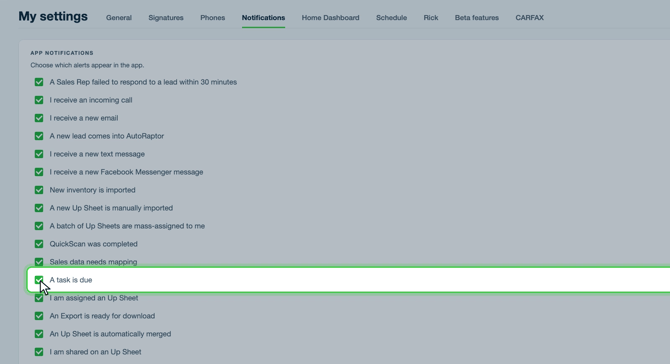
To turn reminders off, go to My Settings > Notifications and uncheck A task is due.
5. Restart the action plan on lead merge
This setting restarts the action plan when a returning lead merges into an existing Up Sheet. It's off until you turn it on.
- Go to Settings > General.
- Under Lead merge timeframe, check Restart action plan on merge.
- Click Save changes.
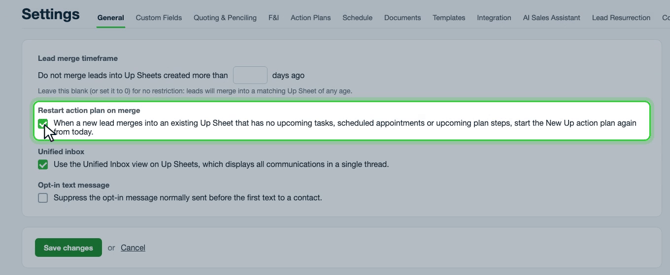
Once on, when a new lead merges into an Up Sheet with no upcoming tasks, scheduled appointments or upcoming plan steps, the New Up action plan starts again from today. An Action Plan Restarted entry shows in the Up Sheet's Activity.
- Overdue tasks don't block the restart.
- A scheduled appointment does block it.
Video walkthrough
Here is a video walkthrough of these task improvements:
https://48309173.hs-sites.com/share/video/227982099343
Last updated 11/27/2026