
Overview
AISA is the AI assistant inside AutoRaptor that drafts and sends customer follow-ups on your behalf. Every message AISA sends is built from your dealership settings, the customer’s record, your inventory, and a strategy chosen for that lead.
Two tools help you keep AISA sharp:
- AISA Reasoning — opens a panel that shows exactly why AISA chose to say what it said, plus the data it used.
- Feedback (👍 / 👎) — tells AISA whether a response worked. A thumbs-down lets you describe the problem, and AISA can analyze your configuration to suggest fixes.
Giving feedback isn’t just a rating — it actively improves the prompts AISA uses going forward, so the AI gets more accurate and on-brand for your store over time.
The more dealers give thoughtful thumbs-up and thumbs-down feedback, the better AISA performs for your store. A few minutes of feedback today saves hours of corrections later.
Walkthrough
Follow these steps the next time AISA sends a message you want to review or correct.
Step 1 — Open a conversation with an AISA message
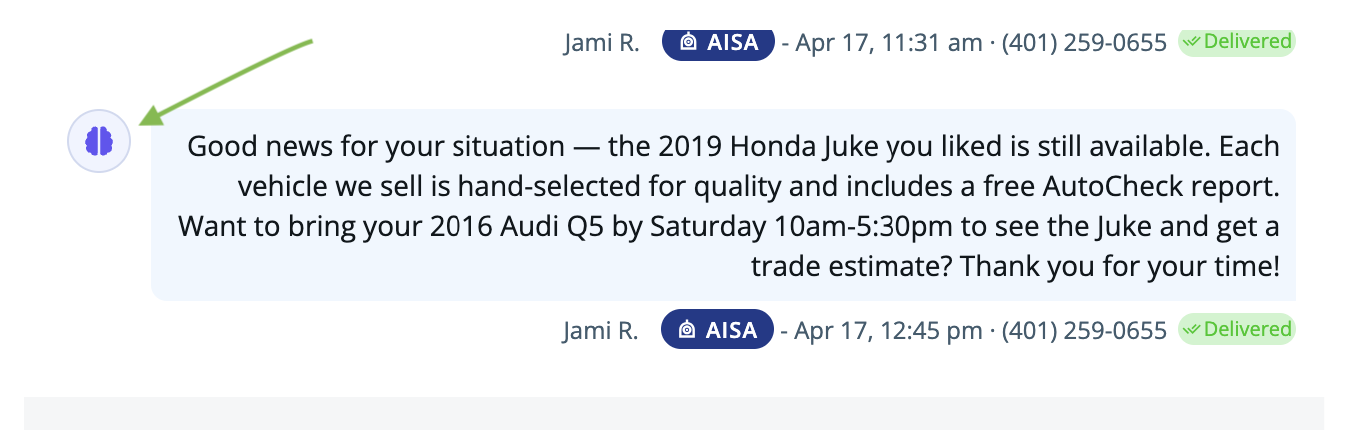
In any lead’s conversation thread, look for messages with the AISA badge next to your name. These are AI-generated messages sent on your behalf.
Step 2 — Click the AISA brain icon to see the reasoning
On the left side of each AISA message you’ll see a small purple brain icon. Click it to open the AISA Reasoning panel.
Tip: If you don’t see the brain icon, the message wasn’t generated by AISA — it was sent manually.
Step 3 — Review the reasoning
The Reasoning panel explains, in plain language, what AISA was trying to accomplish: which customer signals it picked up on, the strategy it selected, and the dealership facts it pulled from your settings.
Below that, the Debug Info section shows the full breakdown for support — including the customer’s shopping stage, the strategies used recently, the vehicle data, business hours, and (importantly) a "What I Made Up" line that flags any information AISA generated rather than pulled from your data.
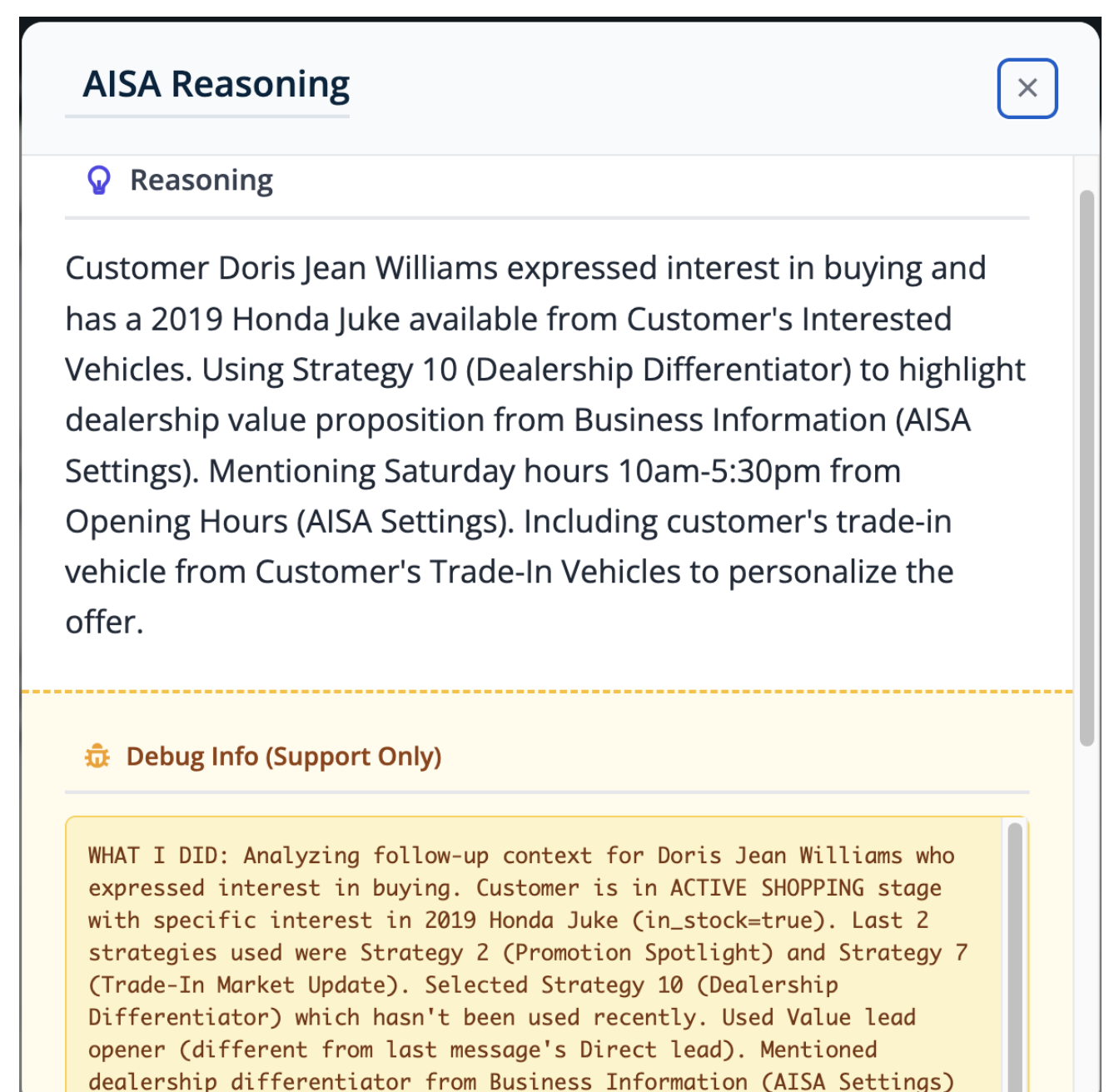
Use the Debug Info to confirm AISA stuck to real facts. If you see anything in "What I Made Up," that’s a great candidate for a thumbs-down.
Step 4 — Rate the response
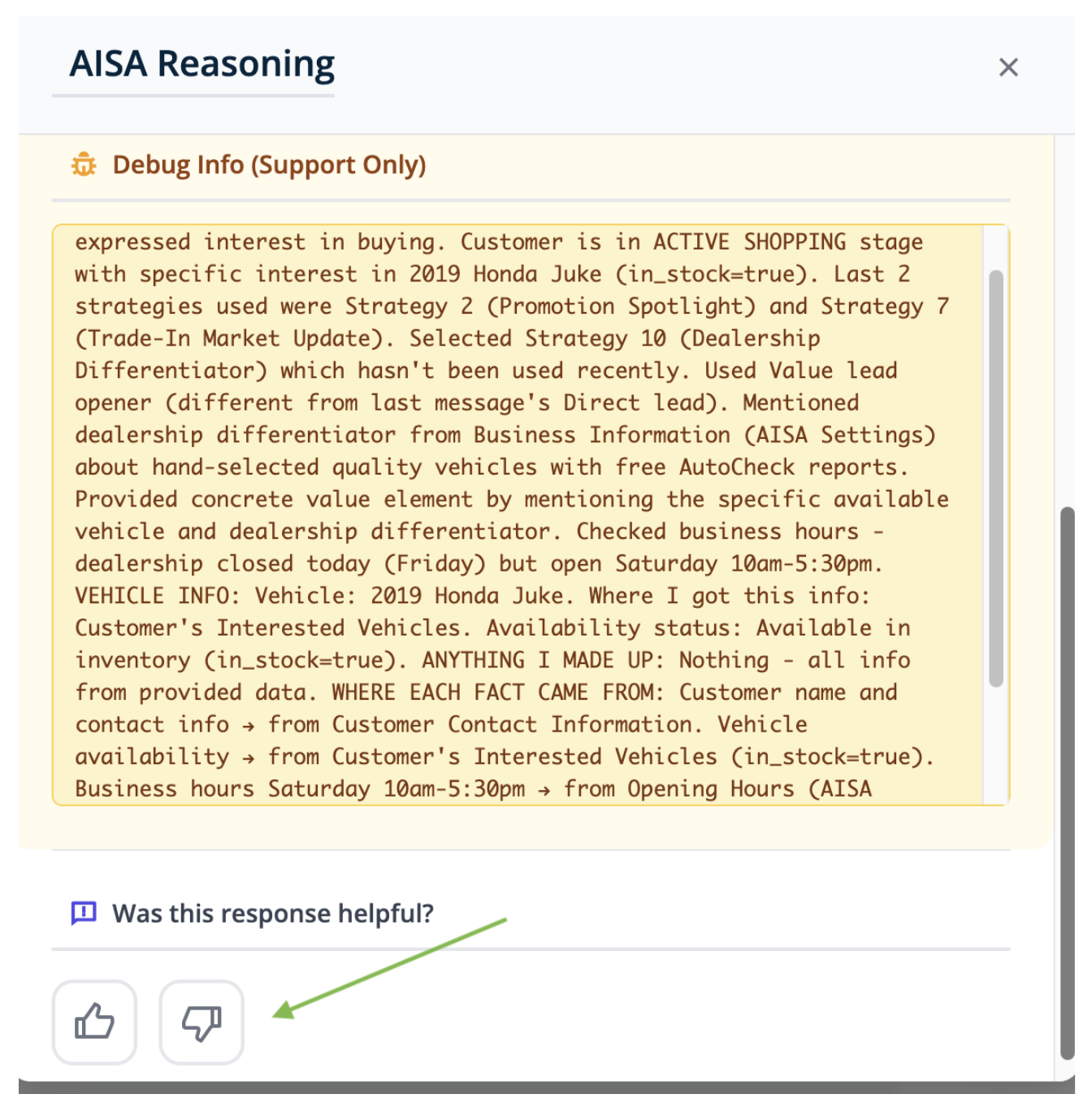
Scroll to the bottom of the panel and choose:
- 👍 Thumbs up — if the message was accurate, on-brand, and the kind of thing you’d send yourself.
- 👎 Thumbs down — if anything was off: wrong tone, incorrect info, awkward phrasing, or a fact AISA invented.
Step 5 — (Thumbs up) You’re done
A thumbs-up tells AISA the current configuration is working for that type of message. No further action is needed — close the panel and keep working.
Step 6 — (Thumbs down) Describe what was wrong
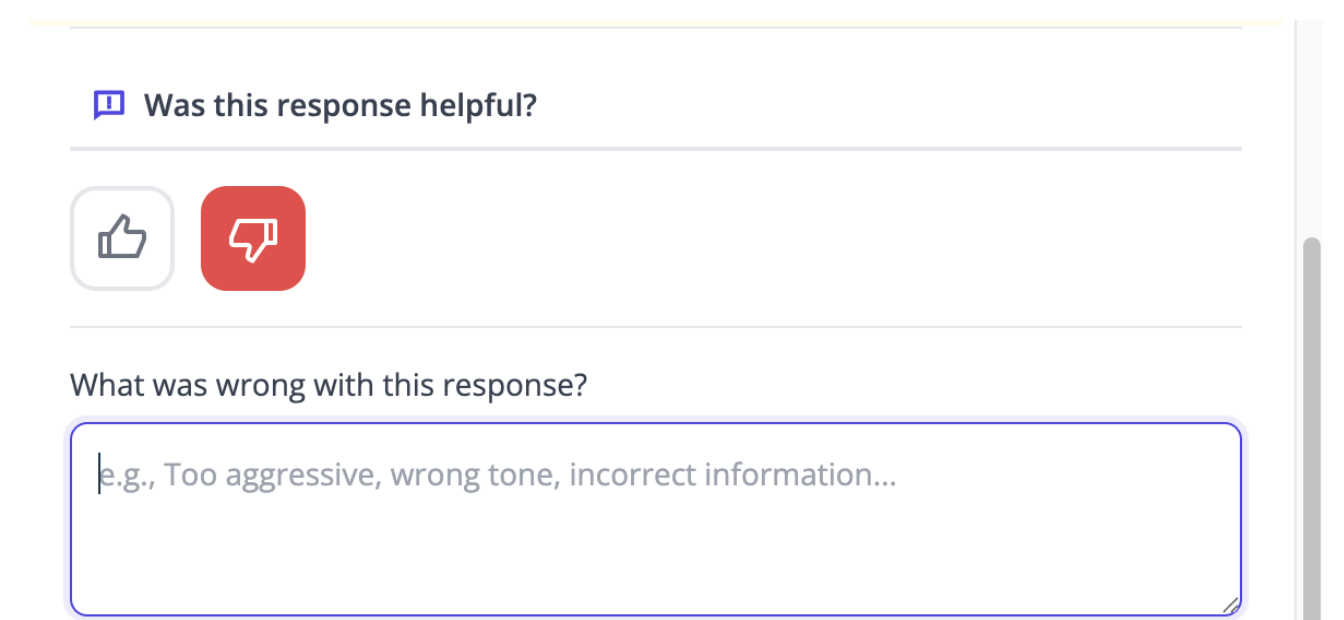
When you click thumbs-down, a comment box appears. Be specific — even one short sentence helps AISA pinpoint the issue. Examples of useful feedback:
- Too aggressive — felt like a pushy sale, not a check-in.
- Wrong vehicle — we don’t have a 2019 Honda Juke in stock.
- Wrong hours — we’re closed on Saturdays.
- Used unapproved phrasing like "credit application."
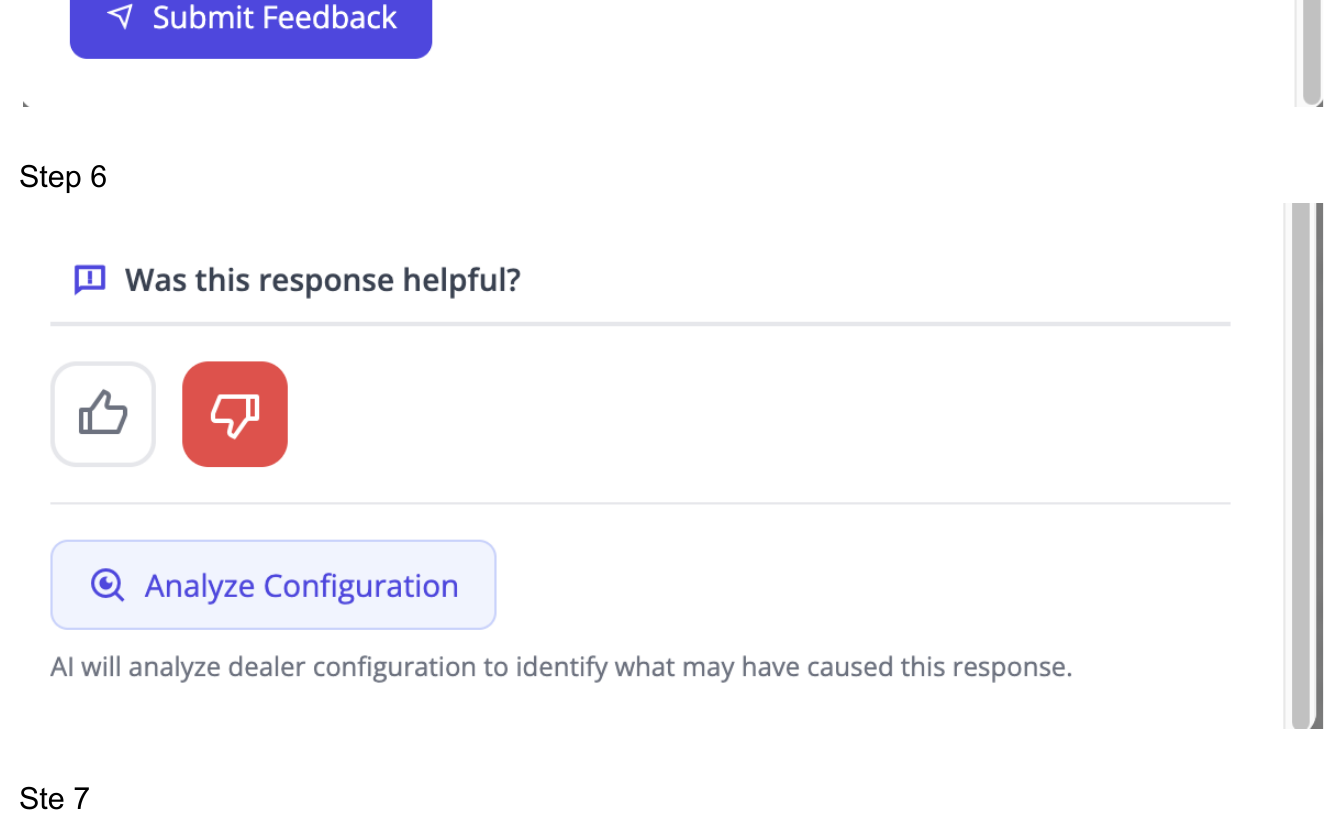
Click Submit Feedback when you’re done.
Step 7 — Click "Analyze Configuration"
After submitting, an Analyze Configuration button appears. Click it and AISA will inspect your current dealership configuration — your Business Information, Opening Hours, inventory data, and so on — to figure out what setting most likely caused the problem.
Step 8 — Review the suggested changes
AISA returns an Explanation of what went wrong, followed by Suggested Changes. The changes are shown in red strikethrough (current setting) and green (proposed setting), so you can see exactly what AISA wants to update.
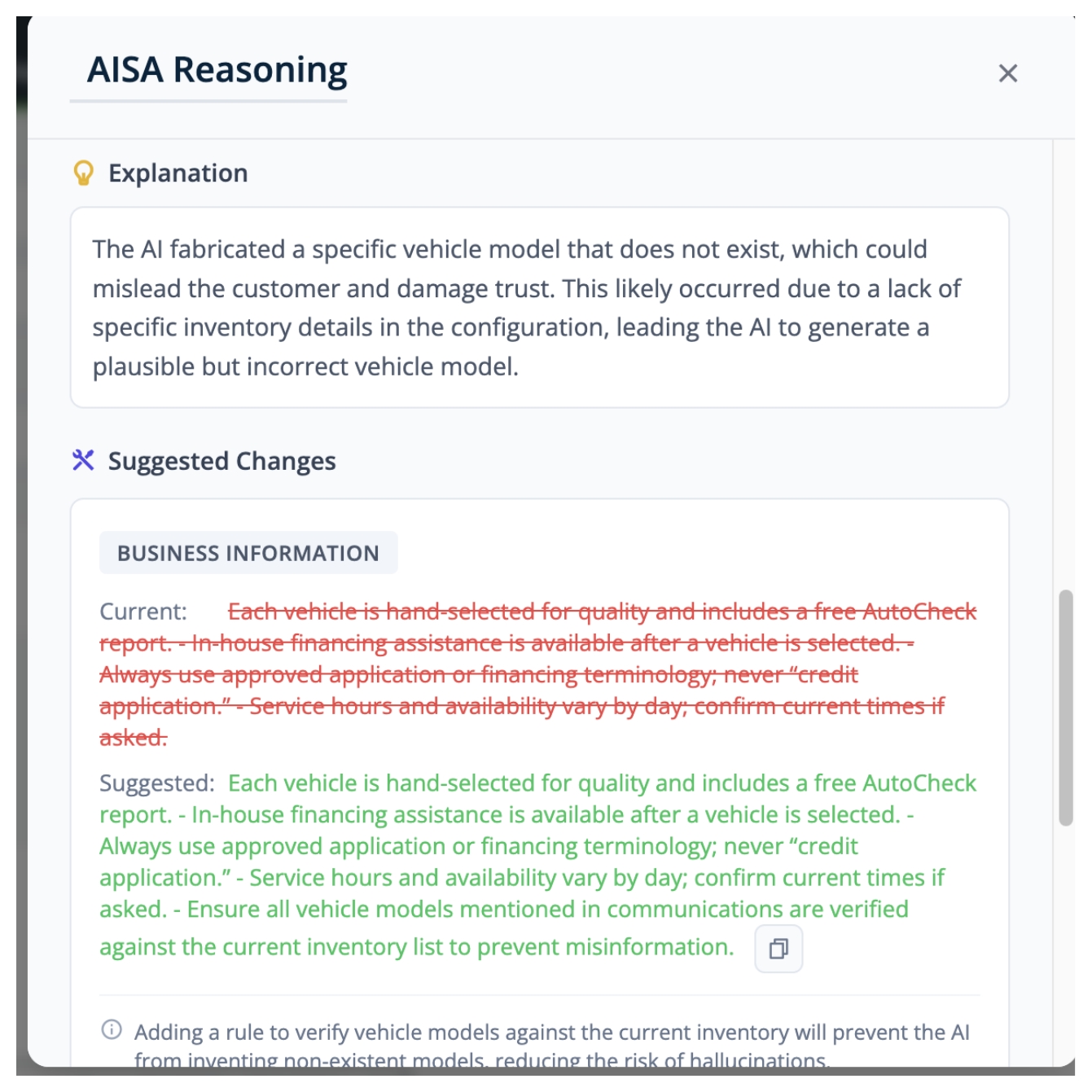
For the example above, AISA noticed it mentioned a vehicle that isn’t in inventory. Its suggested fix adds a rule to the Business Information settings telling AISA to verify vehicle models against the current inventory before using them in a message.
Review the suggested changes carefully, then apply them in your AISA Settings if they make sense for your store.
Frequently Asked Questions
Does my feedback affect other dealers?
No. Feedback you provide on AISA messages only influences your dealership’s configuration and AISA’s behavior for your leads. Each store’s AI is tuned independently.
Do I have to leave a comment when I thumbs-down?
You can submit without one, but a short note dramatically improves the quality of the Analyze Configuration suggestion. "Wrong tone" is far less useful than "felt too pushy for an initial follow-up."
What if the suggested change doesn’t look right?
You’re always in control. The Suggested Changes panel is a recommendation — you decide whether to apply it. If the suggestion looks off, leave another thumbs-down with more detail, or reach out to AutoRaptor support and we’ll review it with you.
Where can I see the full Business Information AISA uses?
Open AISA Settings from the main menu. Business Information, Opening Hours, and the rest of AISA’s configuration live there. Suggested Changes from the feedback flow will reference these same sections.
Can I review messages I already sent?
Yes. The brain icon and Reasoning panel are available on every AISA message in a lead’s conversation history, so you can audit and rate older messages anytime.
Need a hand?
Contact AutoRaptor support if a thumbs-down keeps producing suggestions that don’t fix the underlying issue, or if AISA is consistently getting something wrong about your store. We can review your configuration with you and tune the strategies AISA uses.