
Instead of switching between separate tools or tabs, your team can now manage every interaction in one place, helping reduce missed context and improving response speed.
Key benefits:
- All communication channels in one timeline
- Faster, more consistent follow-ups
- Customers remain in a single, continuous text thread
- Attachments, links, and Carfax reports accessible in one click
- Dynamic response box that adapts to the last interaction
- Ability to send texts from a single, unified dealership number
Where to Find the Unified Inbox
Open any up sheet and scroll to the Communications section.
The legacy communication view is replaced by the Unified Inbox.
Once opened, the inbox defaults to the All tab, showing every interaction in chronological order.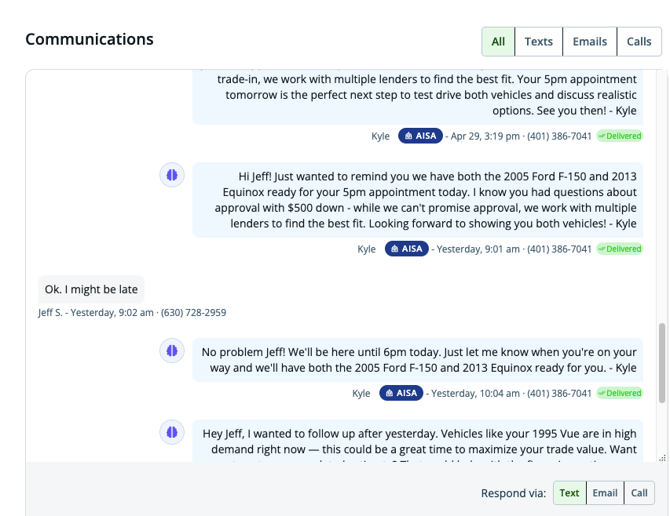
Viewing Conversations
All Tab (Default View)
- Displays calls, emails, and texts together
- Sorted in chronological order
- Automatically scrolls to the most recent interaction
Filtered Views
You can filter conversations by channel:
- Chats / Texts — view only SMS messages
- Emails — view only email threads
- Calls — view call activity only
- All — shows everything together for full context
Loading More History
Click “Load more” at the top of the timeline to retrieve older conversation history.
Resizing the Inbox
You can adjust the size of the inbox panel:
- Drag the resize handle to expand or shrink the view
- Each browser saves its own layout preferences independently
- Adjustments on one device will not affect others
Replying to Customers
The response box automatically adapts based on the most recent interaction:
- Last message was a text → SMS composer opens
- Last message was an email → email composer opens
- Last activity was a call → call logging mode opens
Manual Switching
You can override the default mode by selecting:
- Text
- Call
above the response box.
On filtered tabs (e.g., “Texts”), the response mode is locked to that channel.
Sending Emails
The email composer includes a full editor with formatting tools:
- Bold, italics, underline
- Bullet and numbered lists
- Basic text formatting options
Additional Features
- AI Draft: Generate a suggested email response
- Templates: Insert pre-built dealership templates
Click Send when ready.
Attaching Files and Content
Click Attach to open the attachment modal.
You can attach:
From the Up Sheet
- Vehicle images already linked to the up sheet
- Quotes or “pencils”
- Files uploaded to the record
- Carfax reports and vehicle links
From Your Device
- Upload files directly from your computer
Drag and Drop
- Drag files directly into the email composer
Supported File Behavior
- Images (PNG, JPG, GIF) display inline
- PDFs and documents attach below the message
- Unsupported formats (e.g., WebP) attach as files
You can remove attachments by clicking the X icon.
To attach files for text, click Insert Content: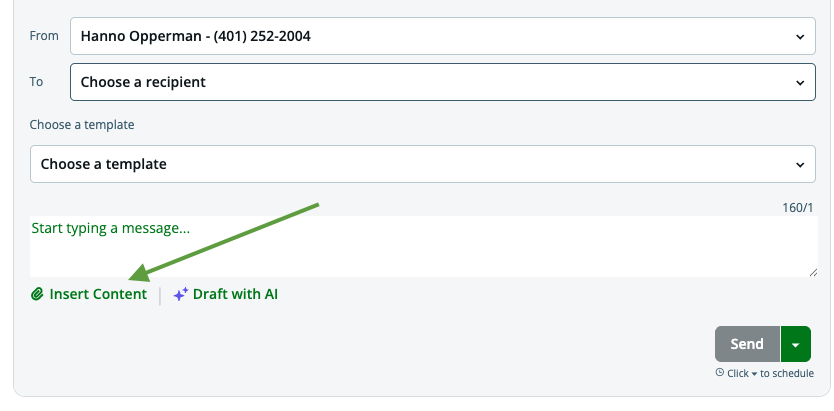
To attach files for email, click the attachment icon: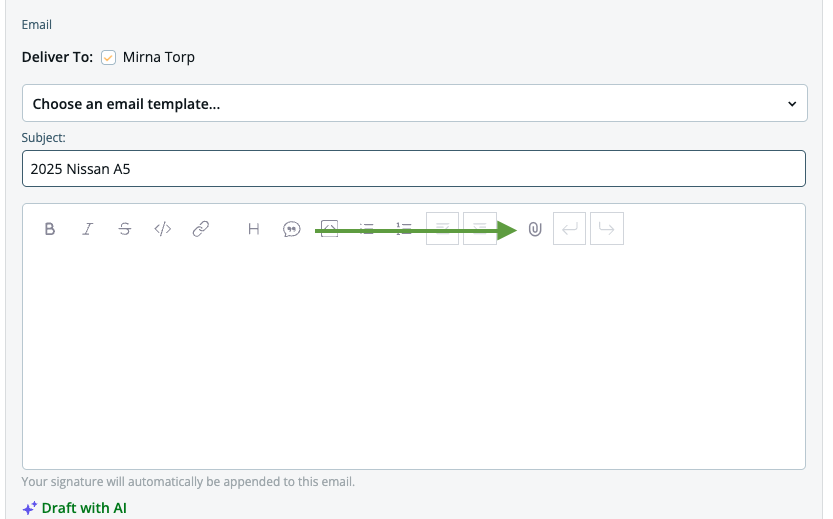
Sending Text Messages
To send a text:
- Type your message in the text box
- Click Send
Additional Text Features
- Insert images or links using the insert tool
- Paste any URL — it is automatically shortened
- No additional steps required for link shortening
Unified Dealer Number (Important Feature)
Unified Inbox ensures customers see one consistent conversation thread, regardless of which team member responds.
How It Works
The system uses a smart From dropdown:
- If a rep started the conversation → their number remains used
- If a manager responds next → their number can continue the thread
- If no prior text exists → the assigned rep’s number is used by default
Number Selection Rules
- Your assigned number appears first
- Other dealership reps appear below a divider
- You can manually override the sending number at any time
Why This Matters
Without Unified Inbox:
- Customers receive messages from multiple numbers
- Conversations appear fragmented in their phone
- Leads may miss replies or lose context
With Unified Inbox:
- One continuous conversation per customer
- Seamless internal handoffs between staff
- Stronger, more consistent customer experience
Logging Calls
Logging a Call from the Up Sheet
- Click the green call button to initiate a call
Logging External Calls
If a call happens outside the system (e.g., mobile phone):
- Switch response mode to Call
- Enter call details
- Save the entry (Log Call)
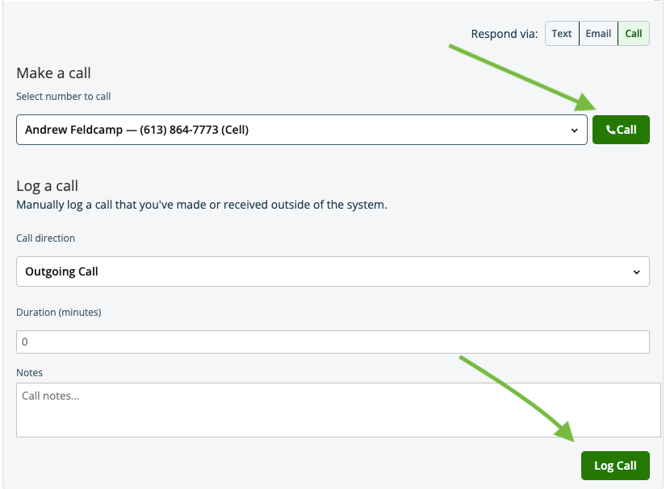
These calls now appear directly in the communication timeline (previously stored under Notes).
Turning Off Unified Inbox (Not Recommended)
To disable Unified Inbox at the dealership level:
- Click the dropdown next to your name
- Select your dealership name
- Go to the General tab
- Uncheck Unified Inbox
- Click Save

Summary
The Unified Inbox centralizes all customer communication into a single, structured timeline. It reduces channel switching, improves follow-up accuracy, and ensures customers experience one continuous conversation — regardless of which team member responds or which channel is used.