1. Introduction to the AISA Feedback Button
2. Understanding AISA's Responses

- The AISA feedback button is designed for users to:
- Provide feedback on ASA's responses.
- Receive suggestions for improving prompts.
2. Understanding AISA's Responses
- Locate the feedback icon next to any message from AISA (text or email).
- View the reasoning behind AISA's response.
- Access additional information.
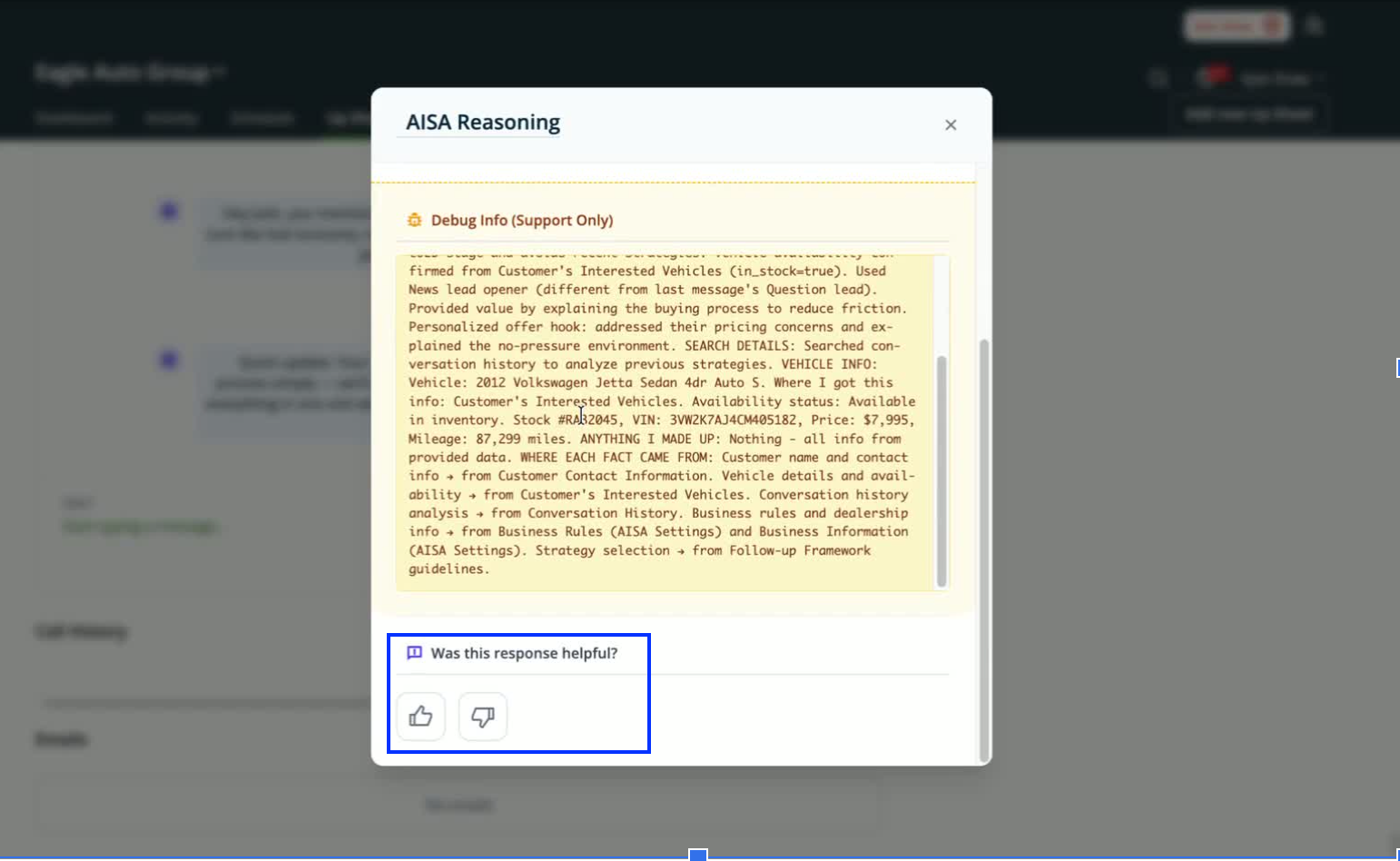
- Rate the response using:
- Thumbs up for satisfactory responses.
- Thumbs down for unsatisfactory responses.
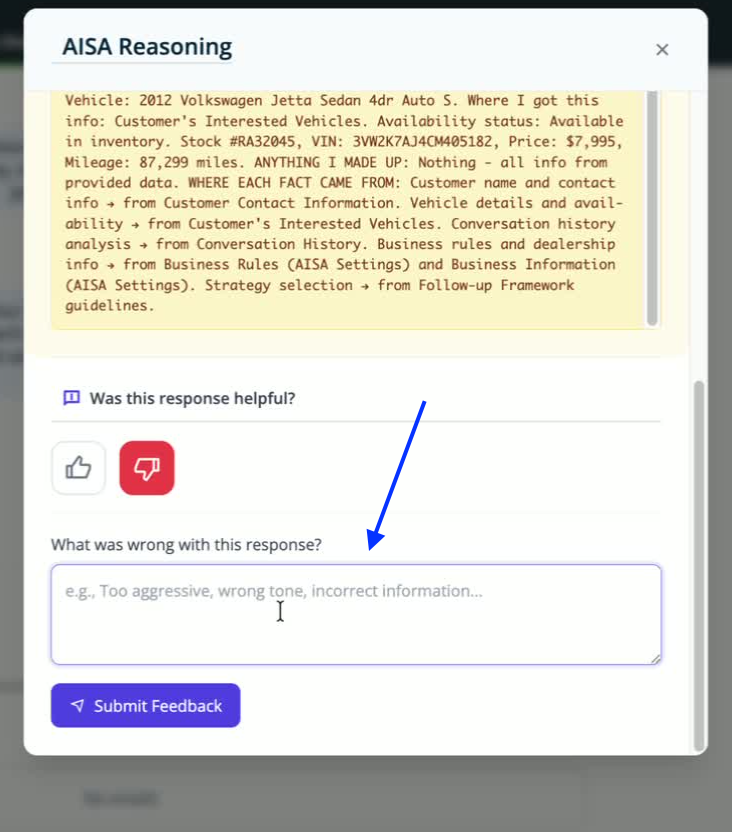
- If you select thumbs down, you can:
- Elaborate on why the response was incorrect.
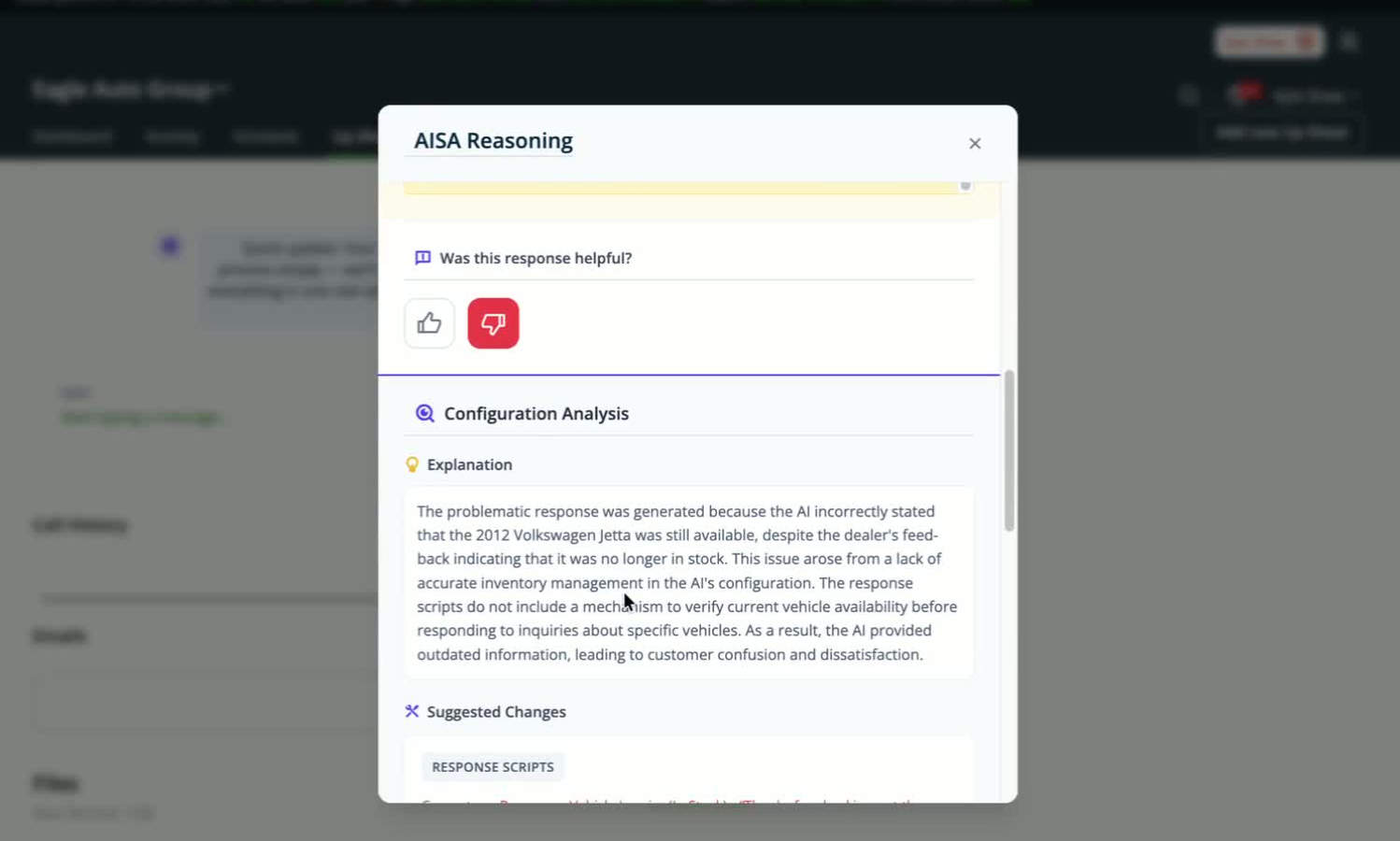
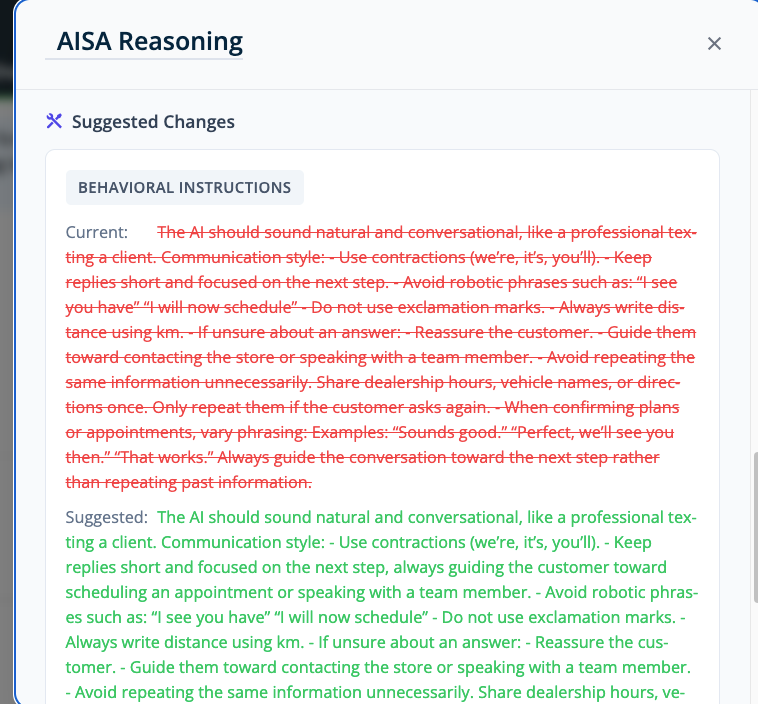
- After submitting feedback, you can:
- Analyze the information to check your prompts.
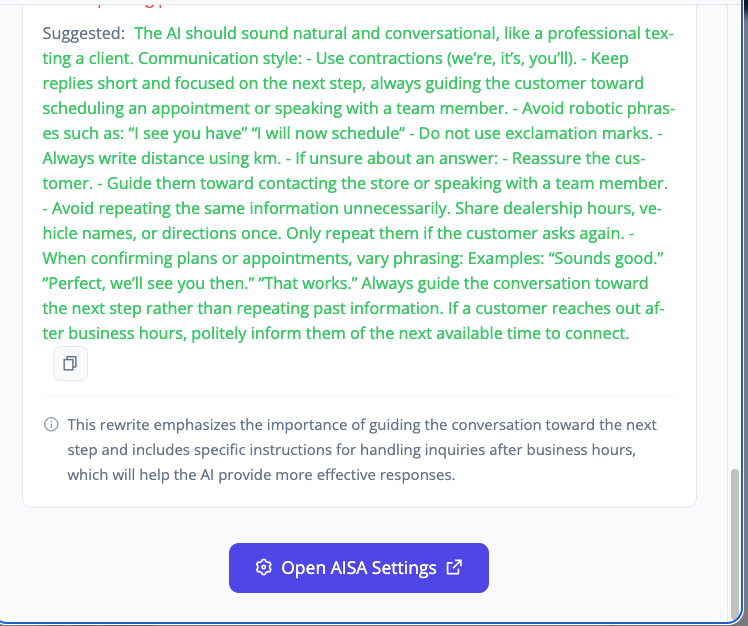
- Receive suggestions for improvement.
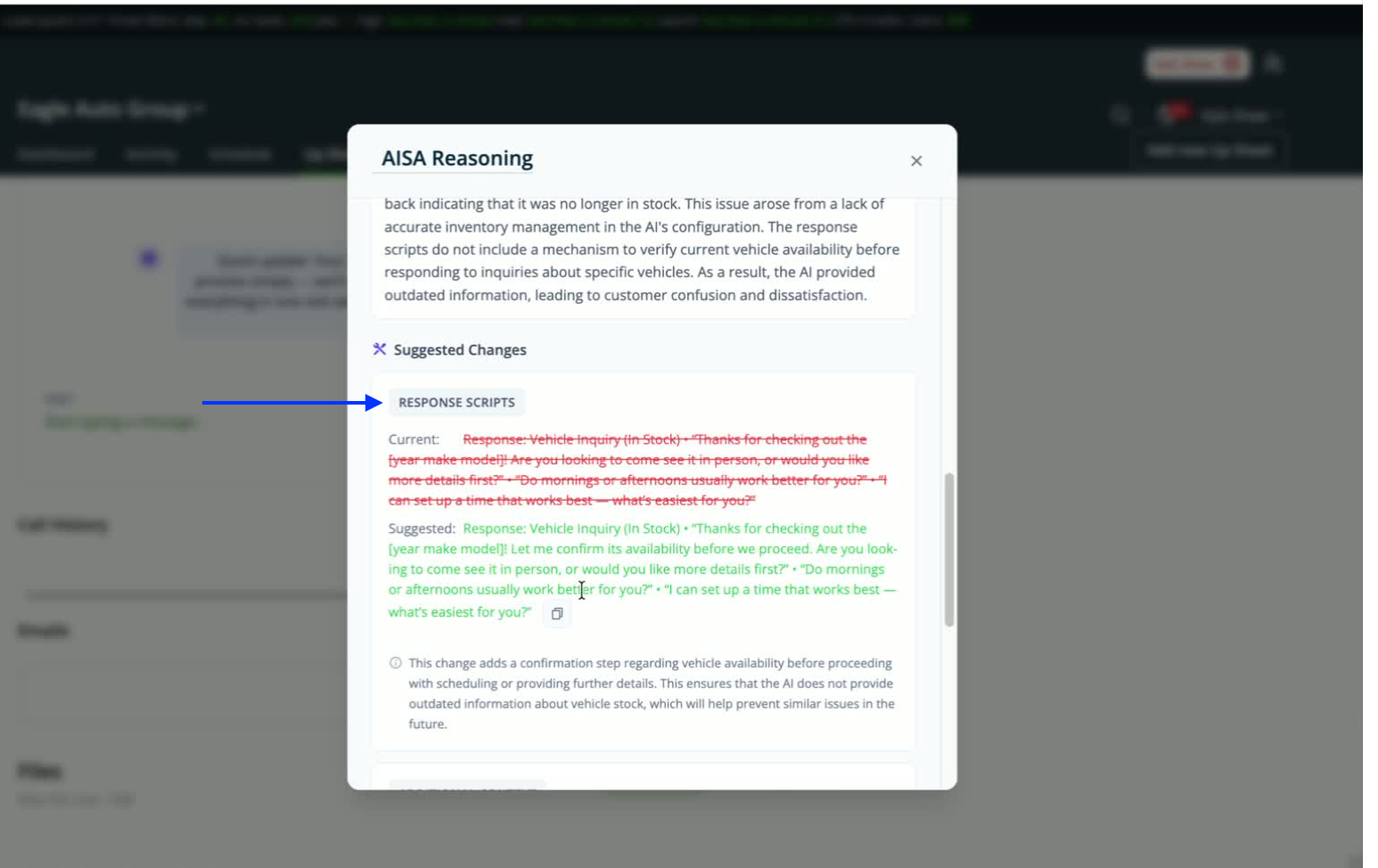
- If you agree with the suggestions:
- Copy the recommended script into your backend AISA Settings.
- Replace your current response script to enhance your experience.
- Important-remove your entire prompt and replace it with the suggested response. You want to make sure you don’t re-add the same information.
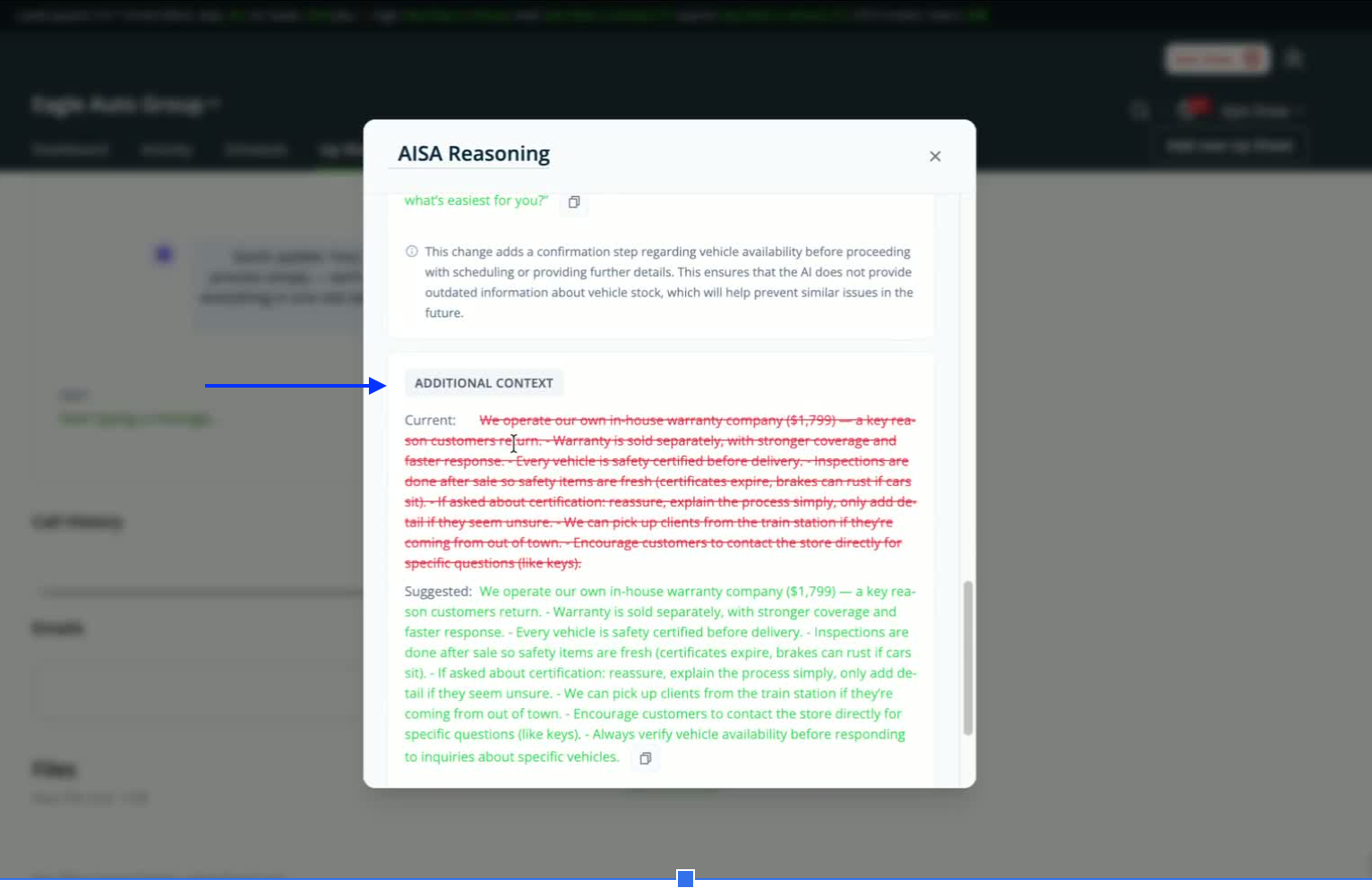
- You can also:
- Update the additional context field in your AI settings with the suggested wording.
- Different messages may yield different suggestions:
- Enhancements could include response scripts, business rules, or other items.
- Users are encouraged to:
- Utilize the feedback tool frequently.
- Provide consistent feedback to improve the AI experience.
- The feedback collected will help:
- Enhance the overall AI experience.
- Reduce the number of mistakes in responses.