
Overview
The AI website chatbot now does more than answer questions in chat. The widget includes quick-action tabs that let shoppers take the next step directly—checking on a vehicle, valuing a trade, reaching out, or getting directions to your store—without leaving the conversation. Every completed action flows into AutoRaptor as a new up sheet, so your team can follow up right away.
What's New
Before a shopper even opens the chat, they'll see quick-action icons above the "Chat with us" bubble:

When a customer opens the chatbot, they'll see a row of tabs across the top of the widget:
- Chat – Answers shopper questions in real time, opening with your dealership's custom greeting.
- Availability – Lets a shopper submit interest in a specific vehicle.
- Trade-In – Collects shopper details and sends them a link to your trade-in portal to request an appraisal.
- Contact – Captures a quick message from the shopper.
- Get Directions – Displays your dealership's address, map, and hours right in the widget.
- Submit Credit App (bonus) – Available to dealers on AutoRaptor Credit; lets shoppers submit a pre-qualification directly from the widget.
Note: Availability, Trade-In, and Contact require a privacy policy URL before they can be enabled. See Requirements below.
How Leads Flow into AutoRaptor
Every form submission creates an up sheet in AutoRaptor with:
- The shopper's contact info
- Their opt-in preferences
- A source of "AutoRaptor Website Chatbot"
Required fields—first name, last name, and a phone or email—help keep incoming leads clean. Trade-in submissions that come back through the trade-in portal are automatically linked to the same up sheet, so there's no duplicate record to manage.
How to Turn It On|
Step |
Action |
|
1 |
Go to Settings → Select your dealership → AI Sales Assistant → Website Chatbot. |
|
2 |
Scroll to the Chat Widgets section. |
|
3 |
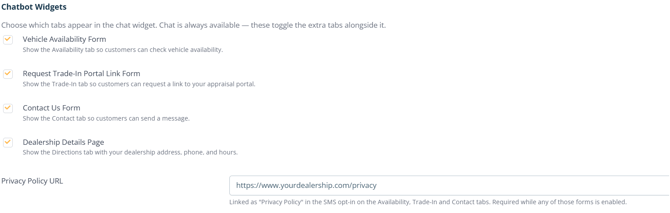
Check the box for each action you want available on your website. |
Note: Chat is always on. The other tabs only appear on your website once selected.
Requirements
-
Your privacy policy URL is required to enable Availability, Trade-In, and Contact.
-
Once your privacy policy is linked, the system will automatically pull each relevant field.
Here's a walkthrough of the experience, so you can see exactly how it will look and function on your website:
https://autoraptor.storylane.io/share/2vazz5wf8ghi
Note: Submit Credit App requires an active AutoRaptor Credit subscription.
Chat Avatar
Under Chat Widget Settings, use the new Chat Avatar setting to upload your dealership's logo. It will display in the chat widget so shoppers immediately recognize your brand.
FAQs
Do I have to enable all the tabs?
No. Chat is always on; you choose which of the other tabs to enable.
What happens if I don't add a privacy policy URL?
Availability, Trade-In, and Contact will not be available to enable until a privacy policy URL is added.
Will trade-in appraisal requests create duplicate leads?
No. Trade-in submissions from the portal link back to the original up sheet created in the widget.
Who can use Submit Credit App?
Only dealers subscribed to AutoRaptor Credit.