
Getting There:
- Go to Settings.
- Select the Dealership.
- Select AI Sales Assistant from the top navigation.
- Click the Website Chatbot tab (next to Shared Settings, CRM Assistant).

Note: Only users with admin access and above can configure these settings.
Chatbot Status:
Use the Active toggle to control whether the chatbot is active and visible to customers on your website. When enabled, the chatbot deploys to your site; when disabled, it's hidden from visitors.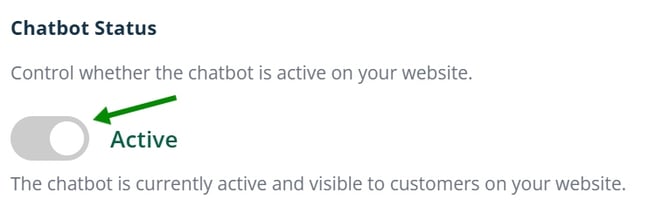
Basic Information
Website Domain – The domain where your chatbot will be deployed (e.g., eagle-auto-group). This tells AutoRaptor which site the widget should load on.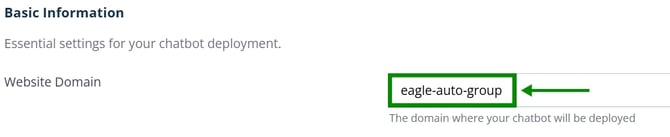
Chat Widget Settings
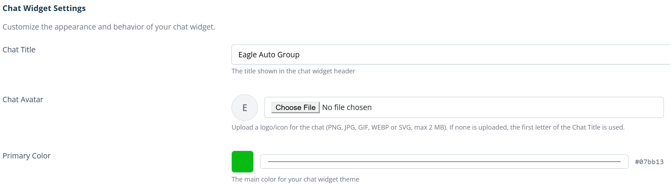
Customize the appearance and behavior of your chat widget:
- Chat Title – The title shown in the chat widget header (e.g., "Eagle Auto Group AI Sales").
- Chat Avatar – Upload your dealership's logo to display in the chat widget. Use Choose File to upload a new image, or check Remove current avatar to clear it.
Quick-Action Tabs
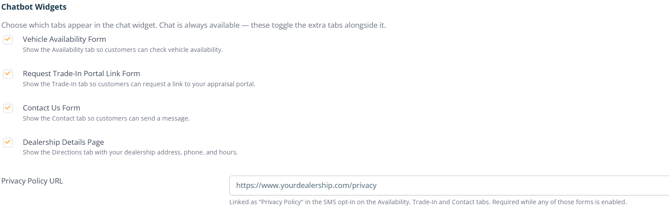
Further down this page, in the Chat Widgets section, you can enable the quick-action tabs shoppers see in the widget: Availability, Trade-In, Contact, Get Directions, and (for AutoRaptor Credit dealers) Submit Credit App. Check the box for each action you want live on your site. Chat is always on; the rest only appear once selected.
TO ENABLE QUICK ACTION TABS: Availability, Trade-In, and Contact each require your privacy policy URL before they can be enabled.
Note: For details on what each of these tabs does for shoppers, see the Website Chatbot Enhancements KB article.
FAQs
What happens if I turn off the chatbot?
It's hidden from your website and shoppers won't see the widget until it's reactivated.
Can I change the chat widget's title at any time?
Yes, updates to the Chat Title take effect immediately after saving.
What image format works best for the Chat Avatar?
Use a square logo (PNG or JPG) for the cleanest display in the widget header.